
Best4Family help · TasksDraft · publication pending

Set task due dates and reminders

A school trip form needs a signature by a certain day. Keep the date and reminders with the task.

Before you start

A written task can still be missed when it has no due date or useful reminder.

1Step 1

Open the task for editing

In Tasks, tap Sign the school trip form. Check the description, assigned person and current due date, then choose Edit.
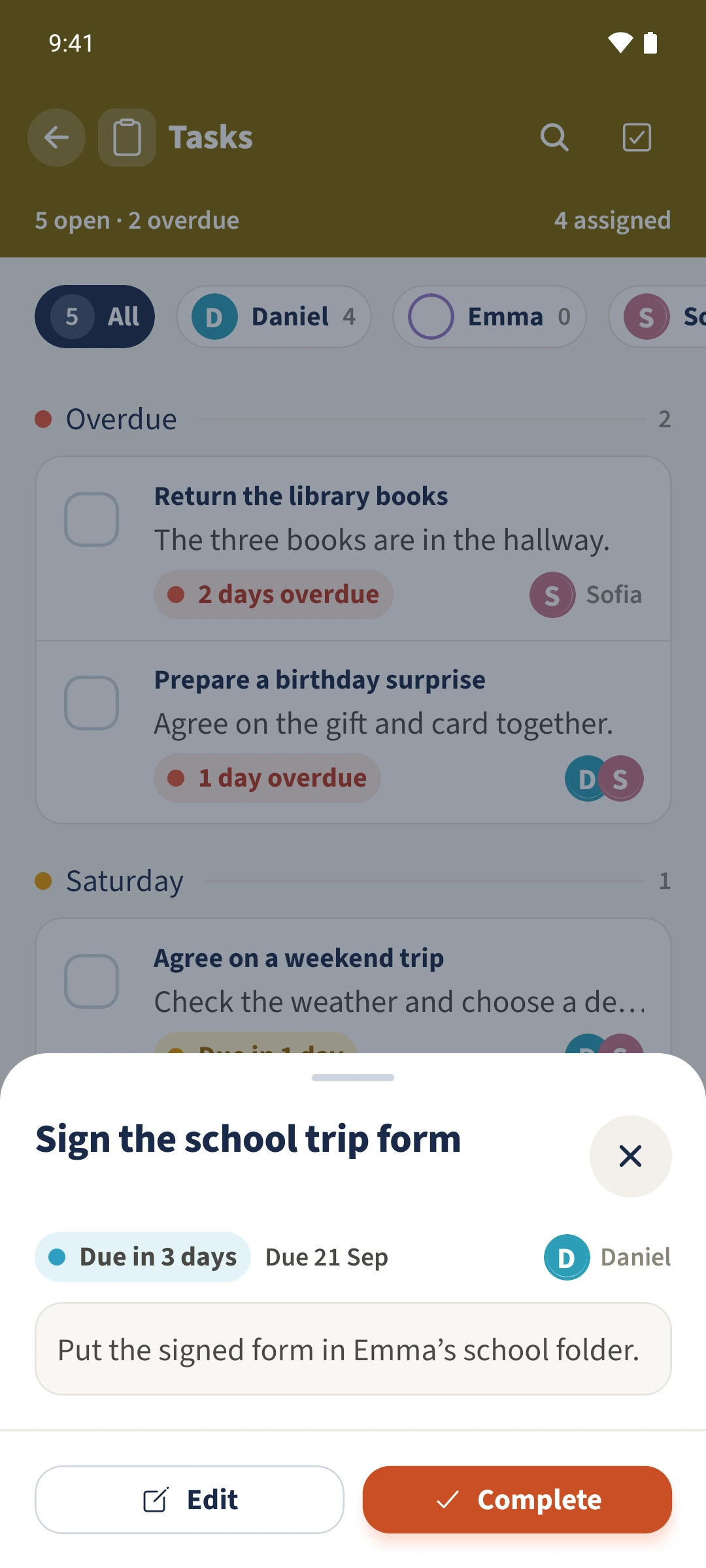
The school trip form details show Daniel as the assigned person and the current due date, 21 September 2026.
2Step 2

Choose the due date

Choose Today, Tomorrow or Date. The example uses 21 September 2026; if it is already selected, keep it. This Android form does not offer a separate due-time field.
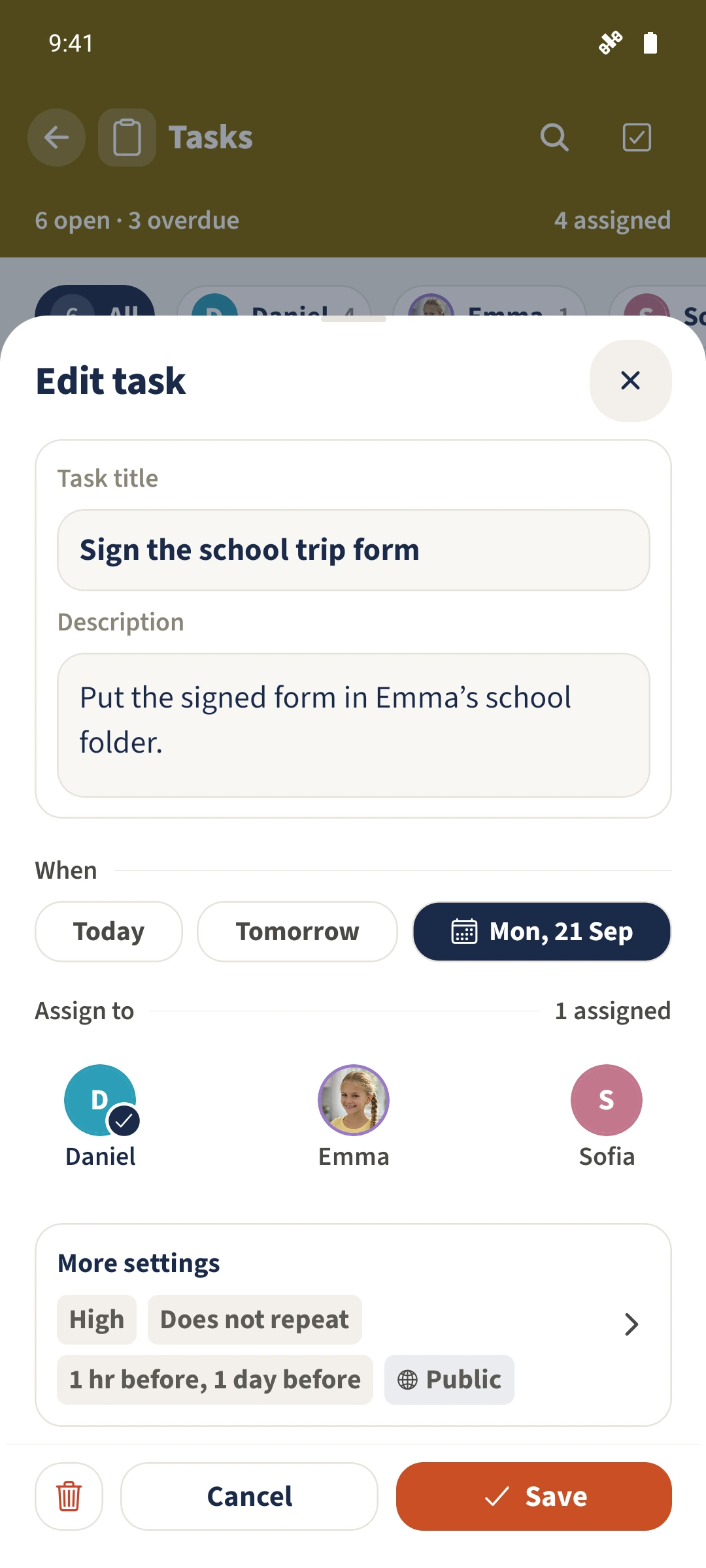
Edit task — Due date
The edit form has 21 September 2026 selected as its due date. Illustrated with fictional example data.
3Step 3

Choose reminders and lead times

Open More settings and enable Reminders. Tap Remind Before Due to expand the options, scrolling if needed. Select 1h and 1d for one hour and one day before the due date. Leave Repeat reminders on No repeat if you only want those lead times.
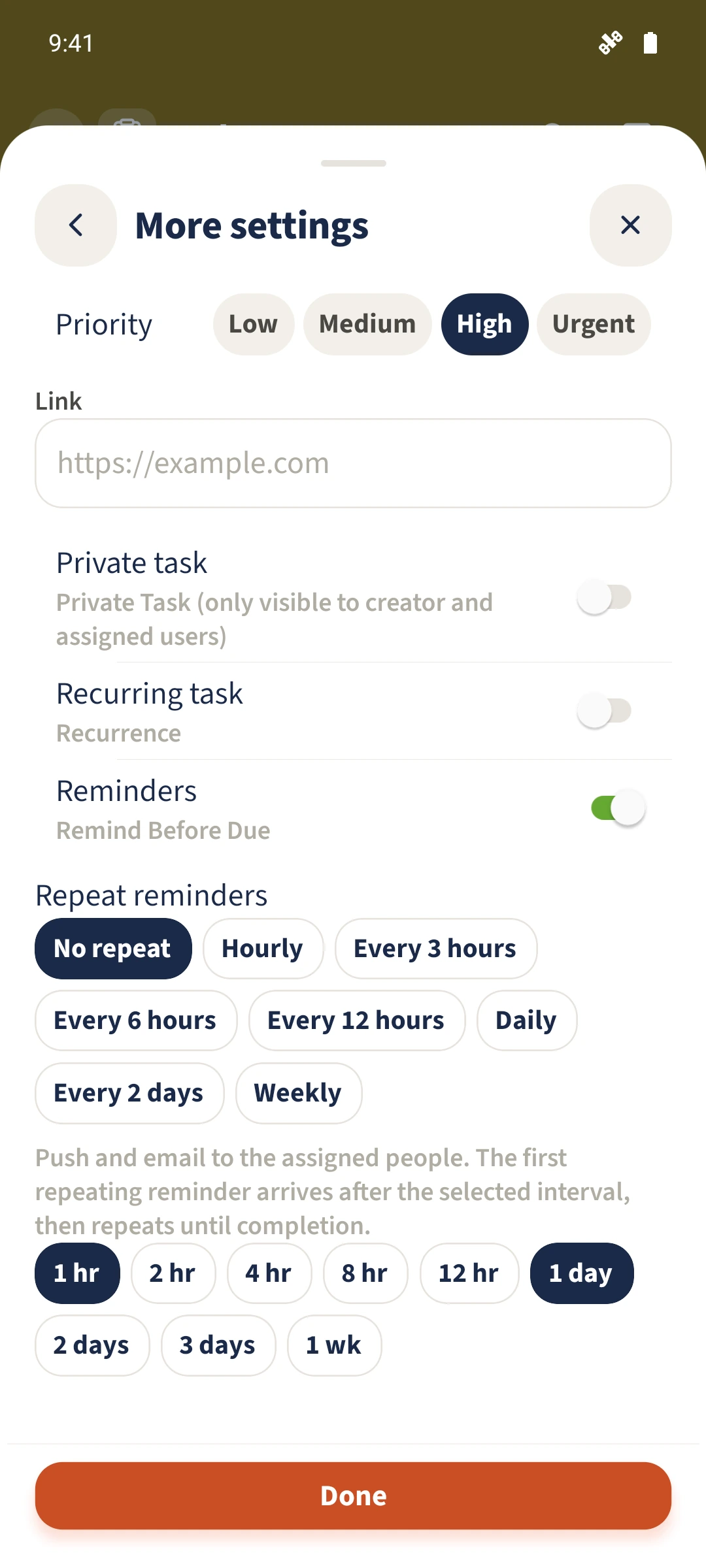
Reminders — Remind Before Due, Repeat reminders
Reminders are enabled for one hour and one day before the due date. Repeat reminders is set to No repeat. Illustrated with fictional example data.
4Step 4

Save and check the settings

Tap Done, then Save in the main form. Reopen the task with Edit. Check its date, assigned person and saved lead times in the More settings summary.
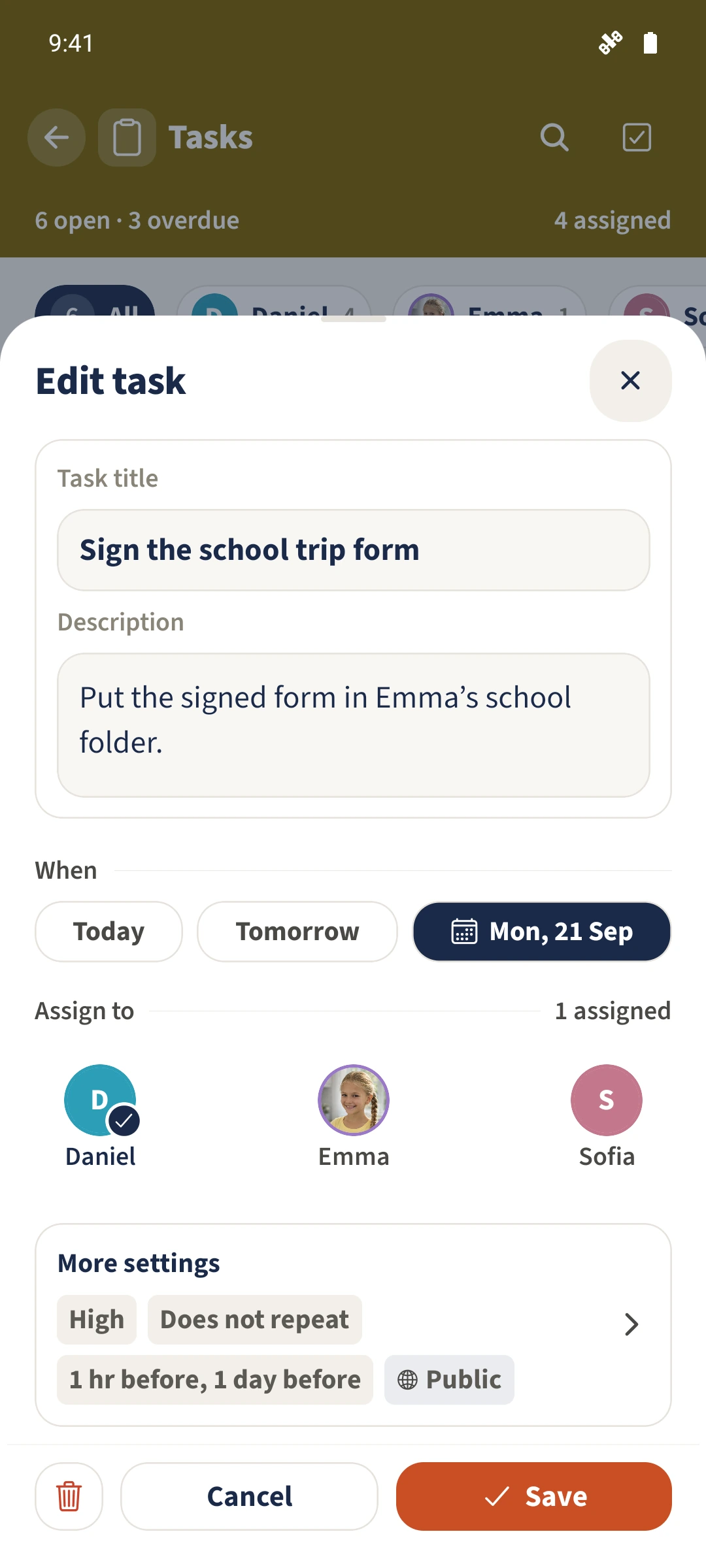
Tasks — Reminders, Due date
The reopened form shows the selected date and saved reminder lead times in its summary. Illustrated with fictional example data.

All done

Open the task, choose Edit and set its date. In More settings, enable Reminders and expand Remind Before Due to choose lead times. Use Done, then Save in the main form to keep the settings.

If something looks wrong

My reminder would arrive on the previous day.

The Android form stores the due date at 00:00 and subtracts the lead time from it. Check the date and lead time together; this form has no separate due-time picker.

Related guides

About this article

Written by Best4Family editorial team. Content reviewed: . Updated: .

The screenshots show the Android app. The layout and controls are largely the same on iOS. The examples use fictional family data.