
Set up recurring family tasks
Writing the same task again can lose earlier completions and leave its ownership unclear.
See the exampleFrom a daily problem to a clear plan
The starting point
Writing the same task again can lose earlier completions and leave its ownership unclear.
A practical next step
Watering the plants comes around every week. A recurring task keeps the description and people together.
Tasks with Best4Family
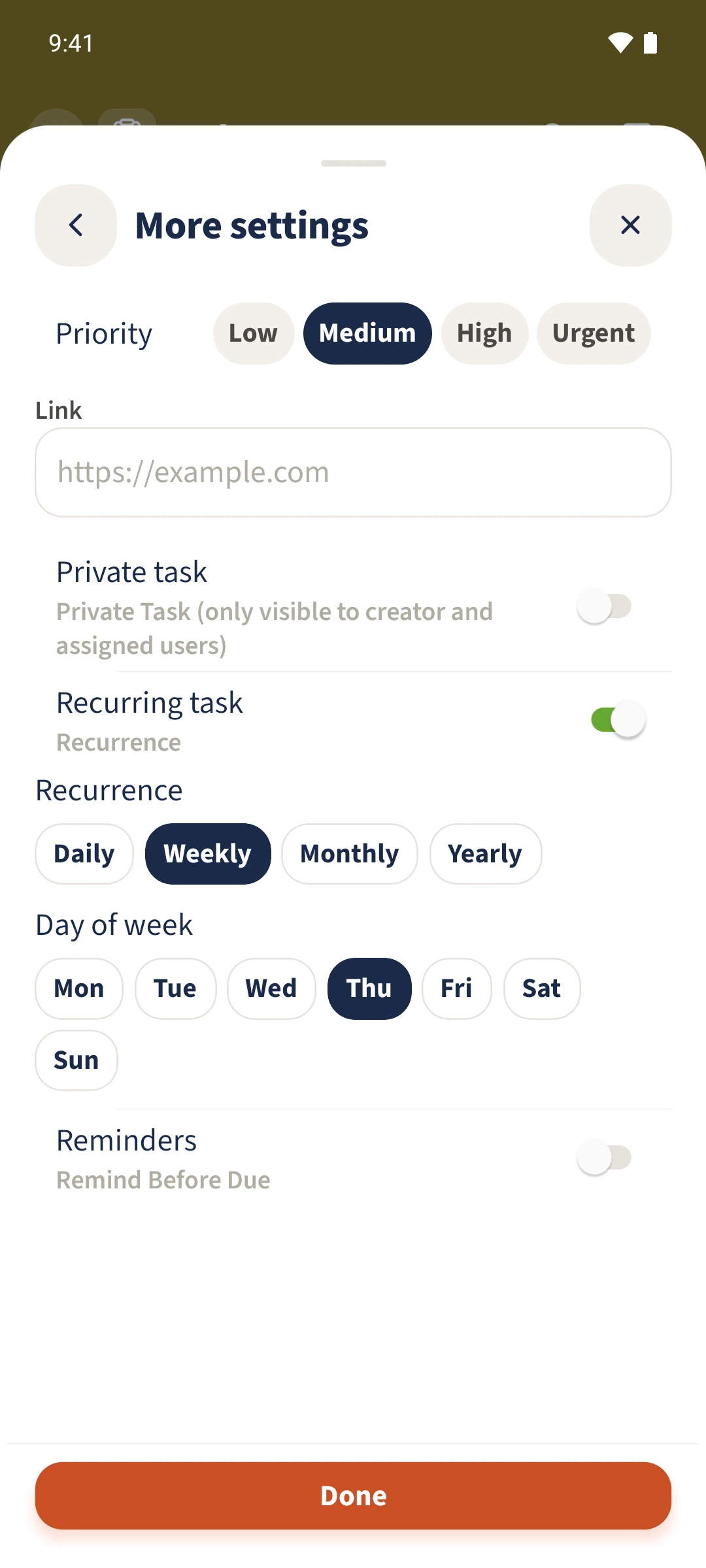
In the task form, open More settings and enable Recurring task. Choose a pattern, such as Weekly on Thursday. Return with Done, check the end date and save. After completing an occurrence, the details show its history and the next date.
Get organised in a few steps
- 1
Prepare the task and people
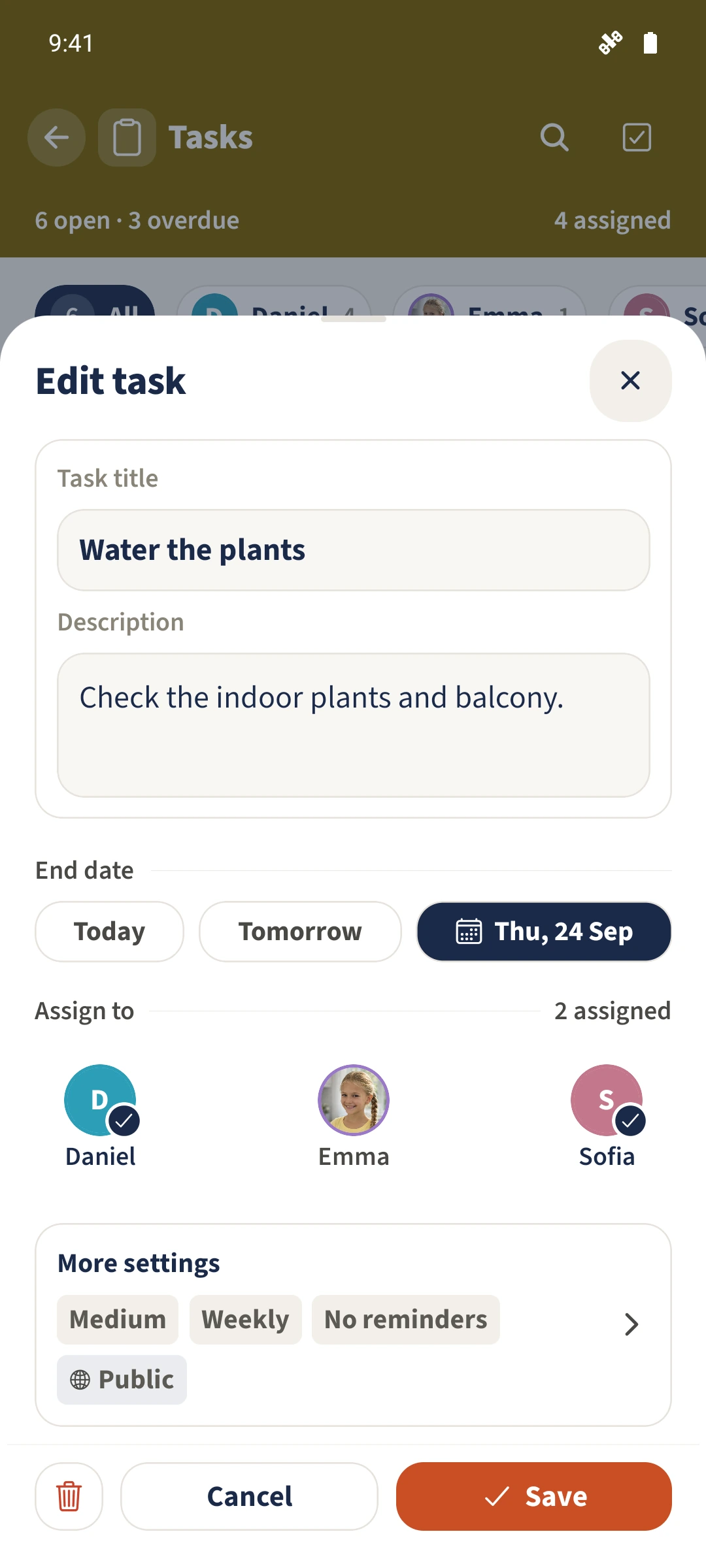
Create a task with the plus, or open an existing task and choose Edit. Enter Water the plants and assign Daniel and Sofia.
- 2
Set the recurrence
Open More settings, enable Recurring task and choose Weekly. Select Thursday, then use Done to return to the main form.
- 3
Check the end date and save
Check End date in the main form. Use Date to choose the end of the series, 24 September 2026 in this example. Check the weekday in More settings again, because changing a date can change the suggested day. Save the task.
- 4
Complete one occurrence
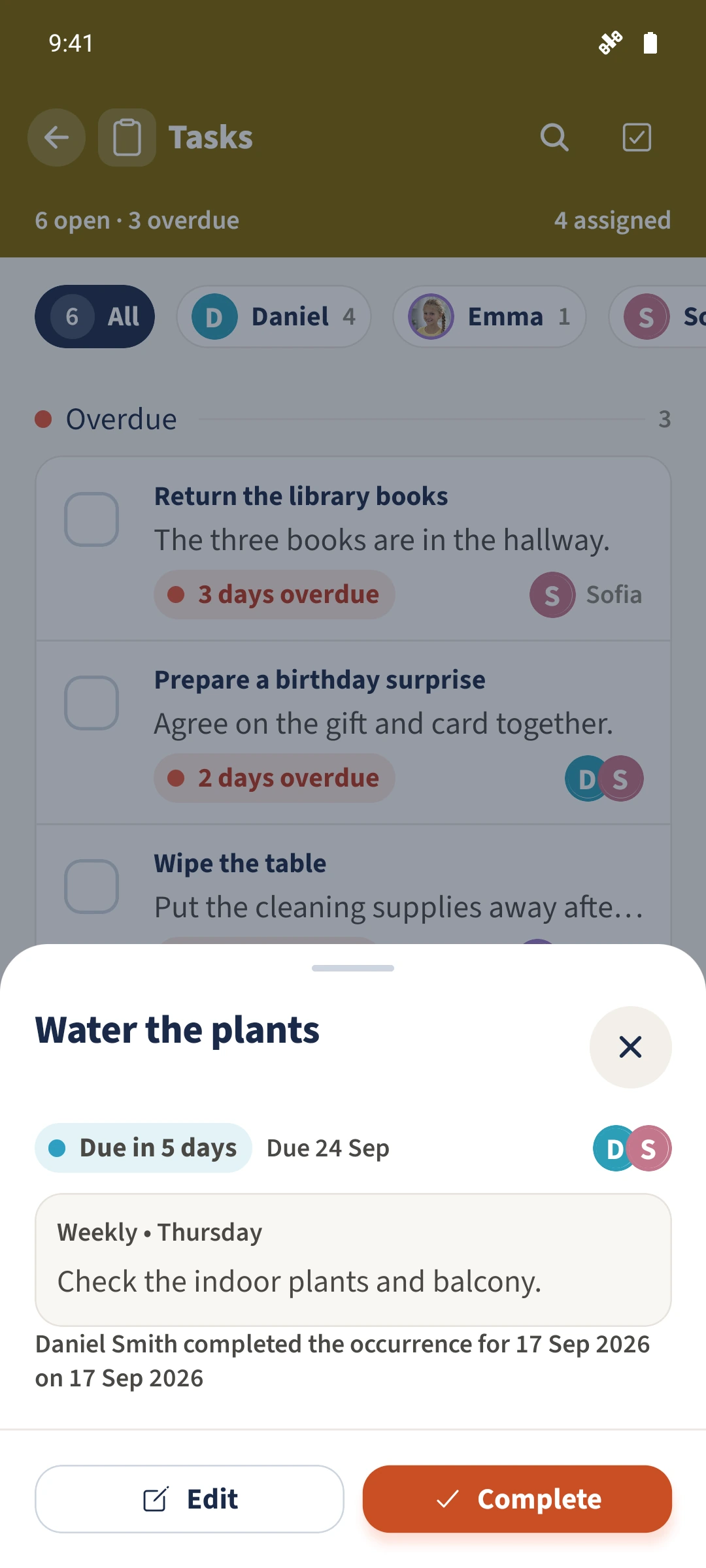
Open the task and choose Complete. Select the pending date shown in Recurrence to complete, add a comment if needed and confirm with Complete task. Open the task again to see the saved history and next date.
The essentials at a glance
Part 01
Android offers daily, weekly, monthly and yearly recurrence.
Part 02
A weekly task uses one selected weekday.
Part 03
The history records a completed occurrence with its date, person and completion date.