
Keep private tasks with the people involved
A birthday surprise does not need to appear on every family member’s task list.
- 1
- Within the family, a private task is available to its creator and assigned people.
- 2
- A private task can have several assignees. Its creator keeps access even without assigning themselves.
- 3
- A people filter changes the list view; it does not grant access to another person’s private tasks.
Using Tasks in family life
Assigning a public task to someone does not restrict who else in the family can see it.
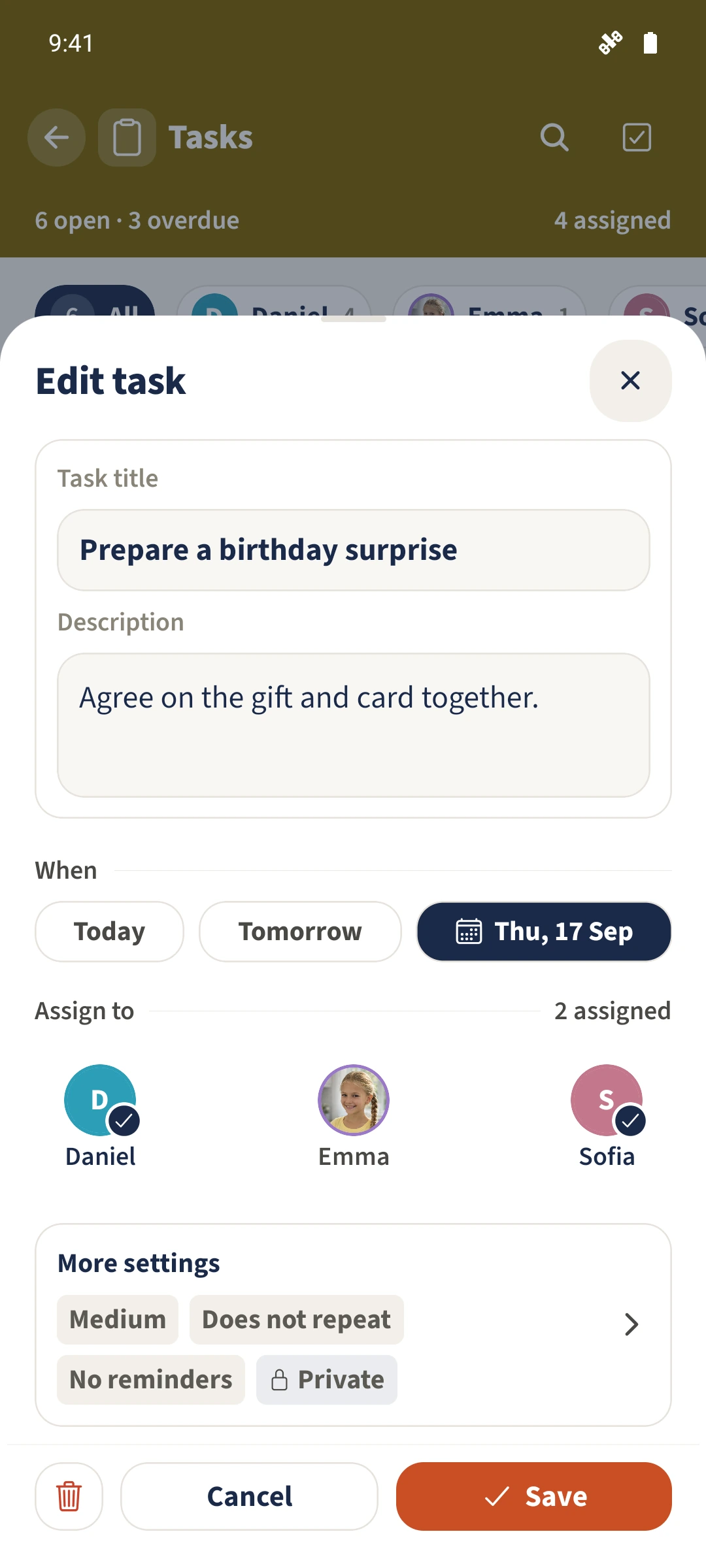
Create a task and select the people involved. Open More settings, enable Private task and return with Done. Save the task, then reopen its editor to check both the private setting and selected people.
How the steps fit together
- 1
Choose the task and people
Open Tasks, tap the plus and enter a title. Under Assign to, select the people involved. Daniel and Sofia are selected for the birthday surprise in this example.
- 2
Enable private access
Open More settings and enable Private task. The hint identifies the creator and assigned users as the people with access. Set reminders separately if needed.
- 3
Save and check the selection
Tap Done, then Create task. Open the saved task and choose Edit. Check the private indicator under More settings and the selected people under Assign to.
- 4
Filter the list when needed
Close the form. Use All and the people above the task list to change the view. All still shows only tasks you are allowed to access.