
Best4Family help · Meal PlannerDraft · publication pending

Save a meal plan as a template and reuse it

Keep a school week that works for your family and use its meal plan again.

Before you start

When the same meals and times work well, entering them again takes unnecessary effort.

1Step 1

Open the source week

Choose the week you want to reuse and check its meals. Open Actions below the week selection and choose Save as Template.
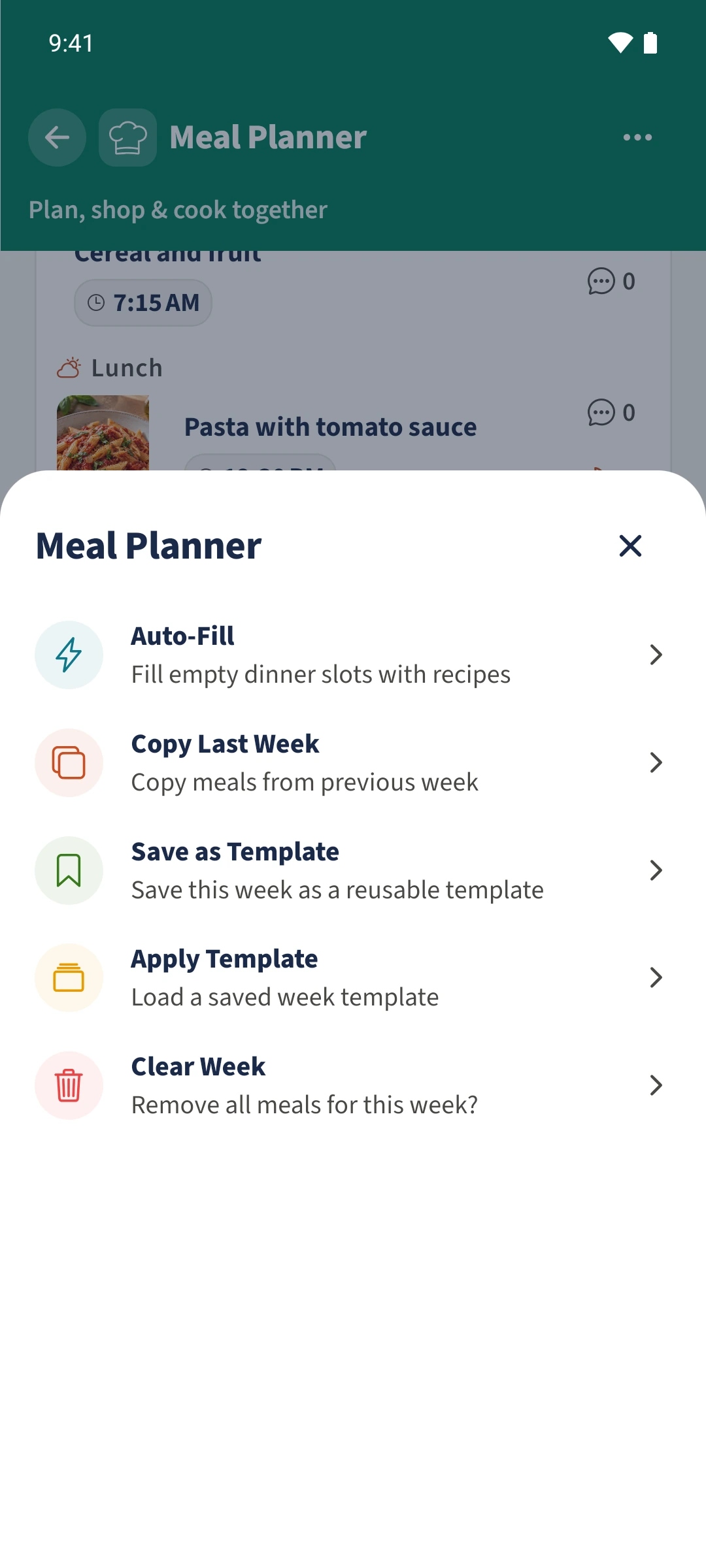
Actions offers Save as Template, Apply Template, Copy Last Week and Auto-Fill.
2Step 2

Name and save the template

Enter a recognisable name, such as Our school week. Tap Save as Template and wait for the confirmation. The saved template is then available independently of the open week.
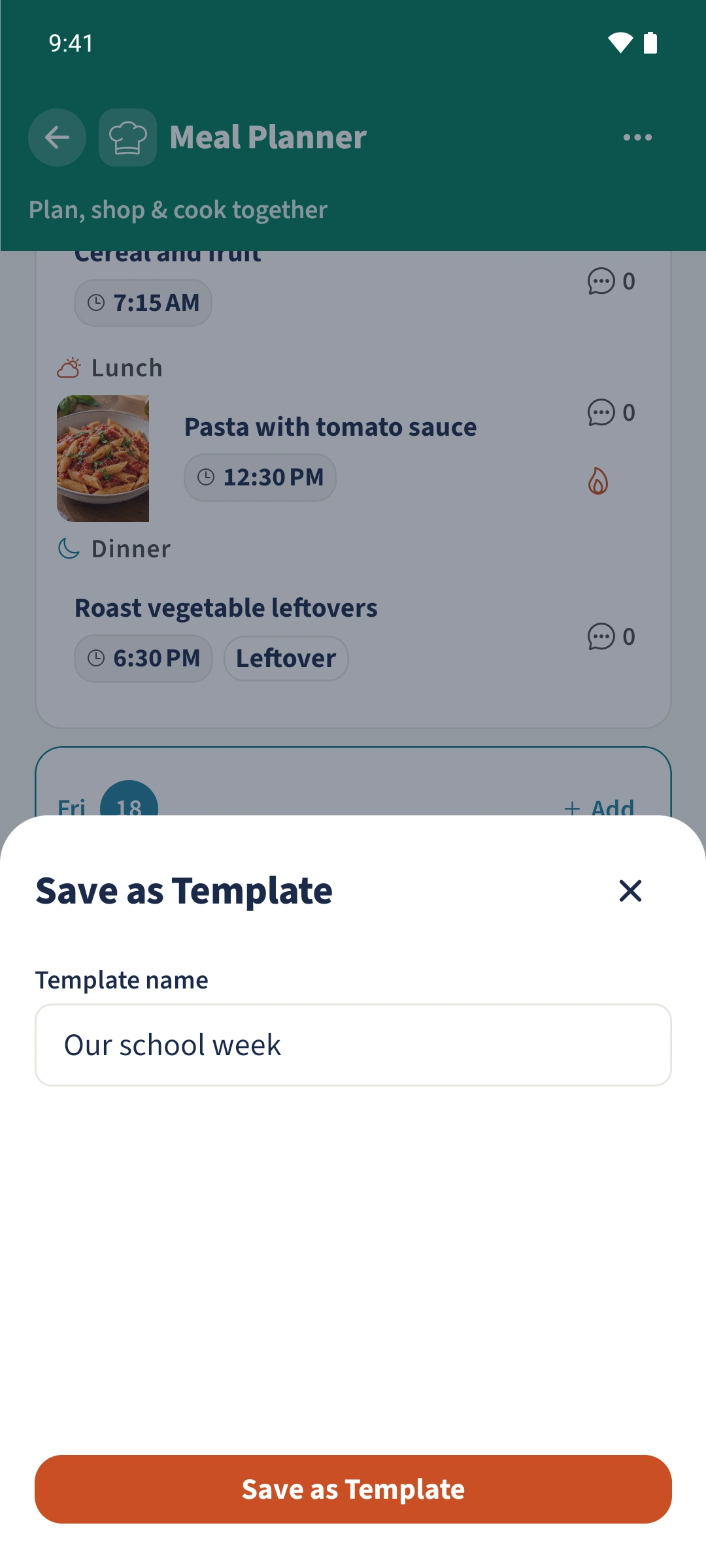
The source week is ready to save with the name Our school week.
3Step 3

Choose the target week

Use the week arrow to move to the target week. Check its existing meals before opening Actions → Apply Template. Tap the template you want to use.
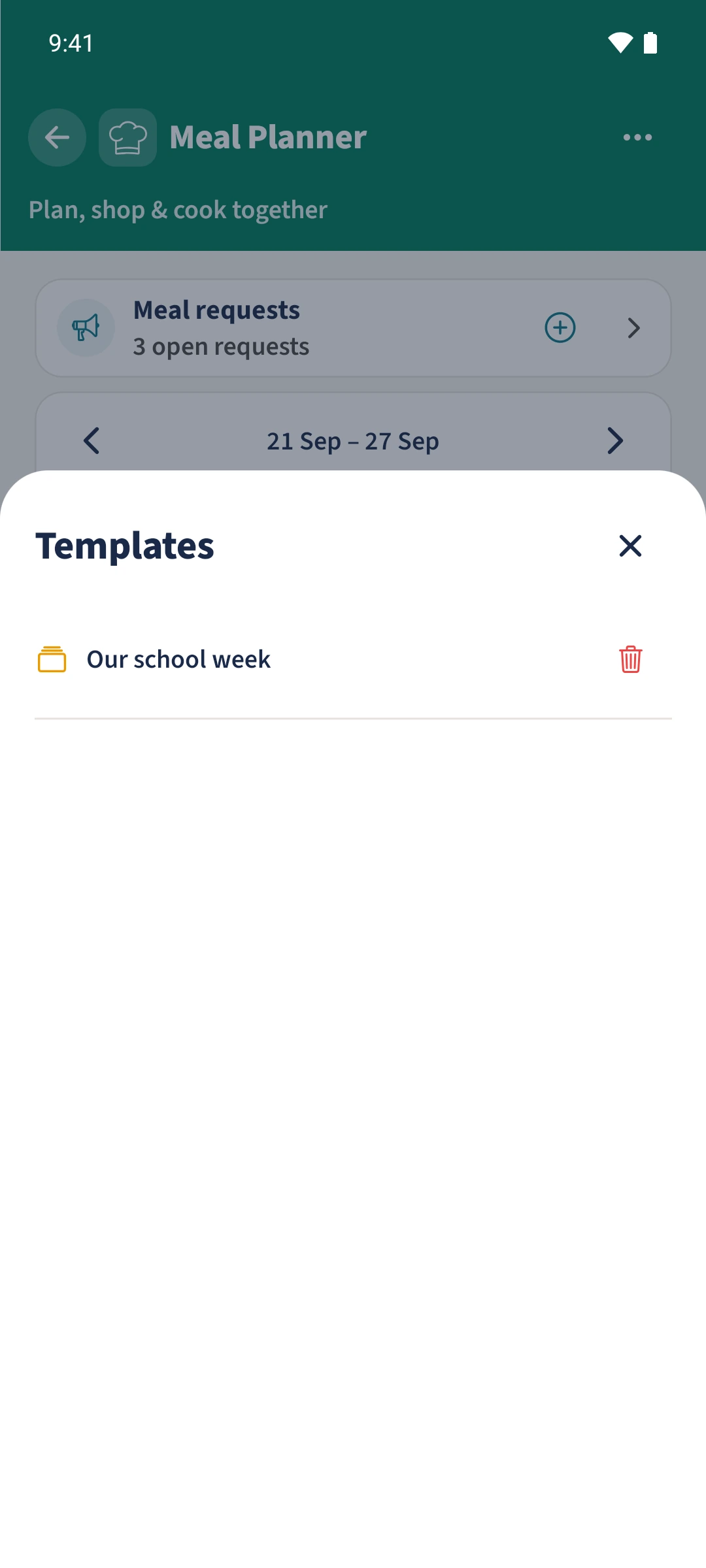
The saved template is available for the target week of 21–27 September 2026.
4Step 4

Check the added meals

Wait for Template applied! and dismiss the message. Check each day in the target week. In this example, the plan for 14–20 September is reused for 21–27 September 2026.
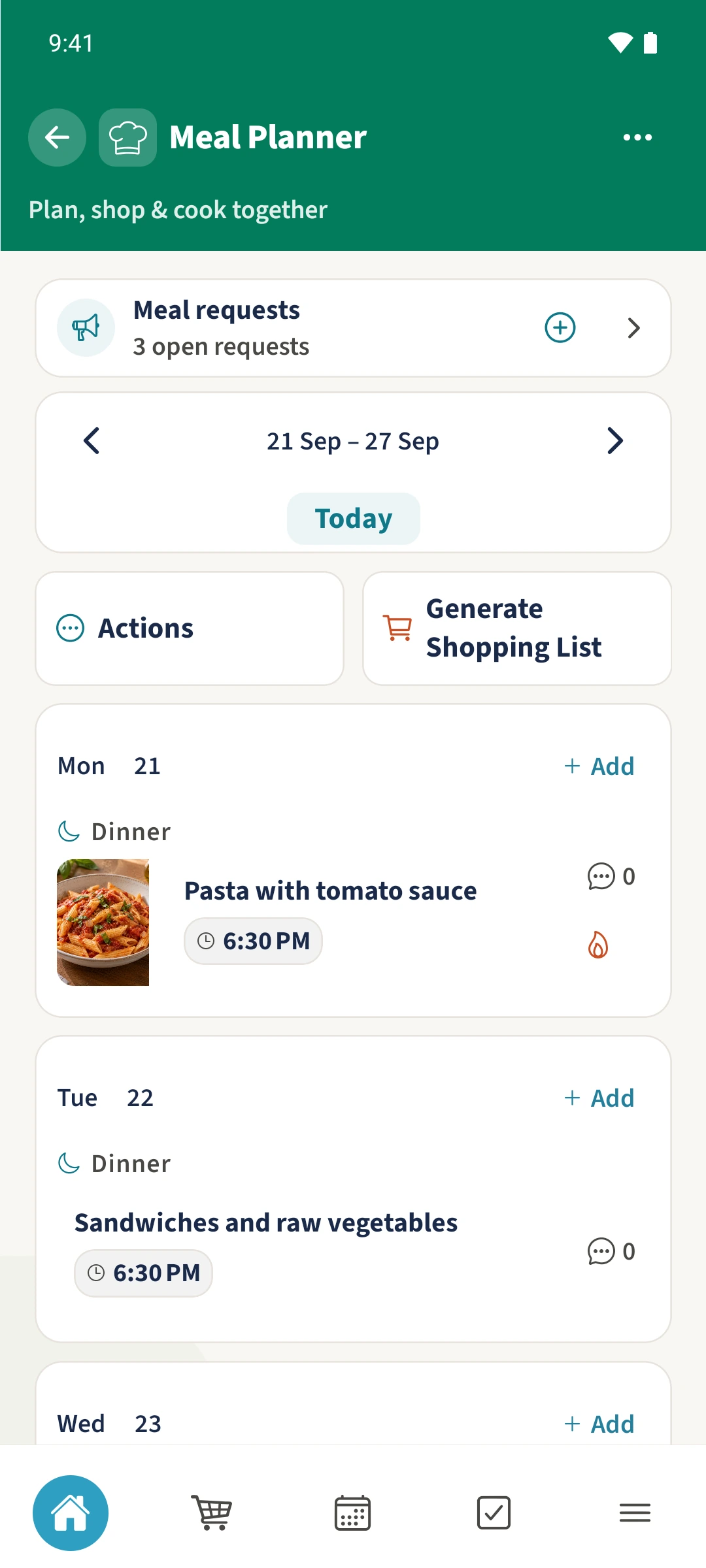
The target week contains the added meals, including pasta on Monday and Sandwiches and raw vegetables on Tuesday.

All done

Open Actions in the week you want to reuse and choose Save as Template. Give it a name, then move to the target week and choose Actions → Apply Template. Select the saved template to add its meals to the matching weekdays.

If something looks wrong

A meal appears twice after applying a template.

Templates add meals without replacing existing entries. Open and remove the duplicate meal. Use Clear Week only if you intend to remove every meal in the displayed week.

Related guides

About this article

Written by Best4Family editorial team. Content reviewed: . Updated: .

The screenshots show the Android app. The layout and controls are largely the same on iOS. The examples use fictional family data.