
Record and understand family spending by category
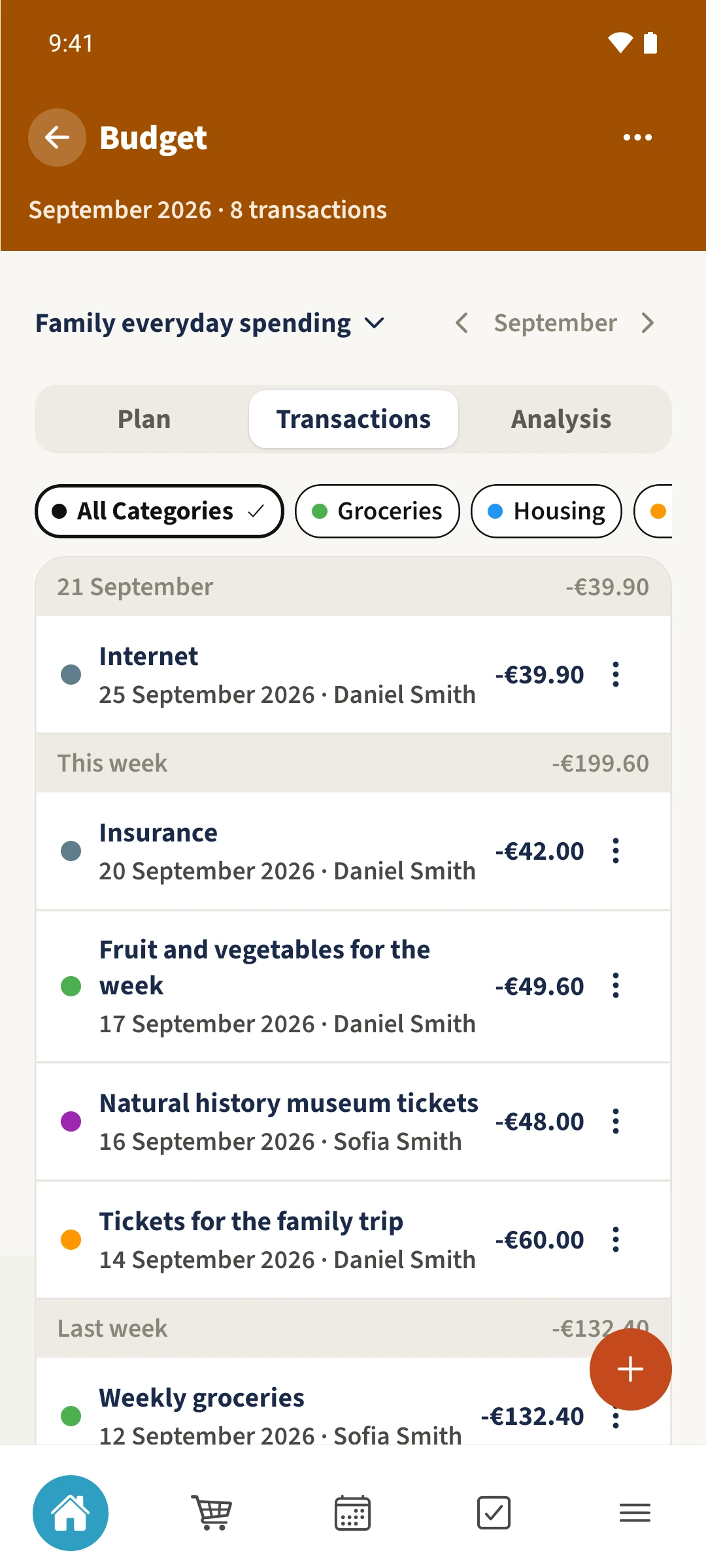
Payments have been made, but without categories it is difficult to see which parts of family life account for the spending.
See the exampleFrom a daily problem to a clear plan
The starting point
Payments have been made, but without categories it is difficult to see which parts of family life account for the spending.
A practical next step
Groceries belong in one category and tickets in another, making many small expenses easier to understand.
Budget with Best4Family
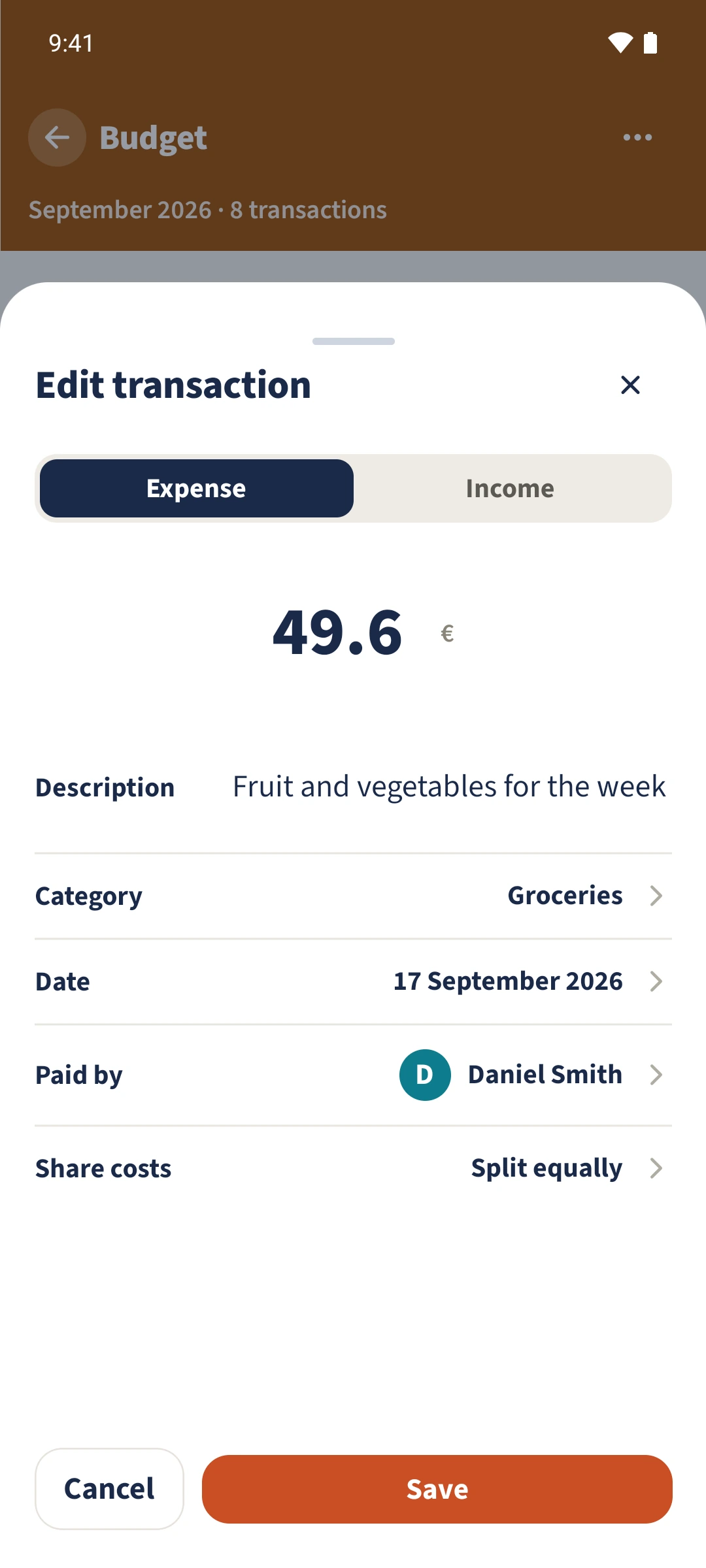
Open Transactions in Budget. Open an existing expense, or tap the plus and choose Expense to add a new one. Check the amount, date, category and Paid by, and add a useful note. After saving, use the category filter to find it. Analysis shows the totals and category shares.
Get organised in a few steps
- 1
Open or add an expense
Choose the budget and month, then open Transactions. For this example, open Fruit and vegetables for the week. To add a new expense instead, tap the plus and select Expense.
- 2
Check the details
Check or enter the amount, category, date and payer. The example is €49.60 in Groceries with the note Fruit and vegetables for the week.
- 3
Save and filter
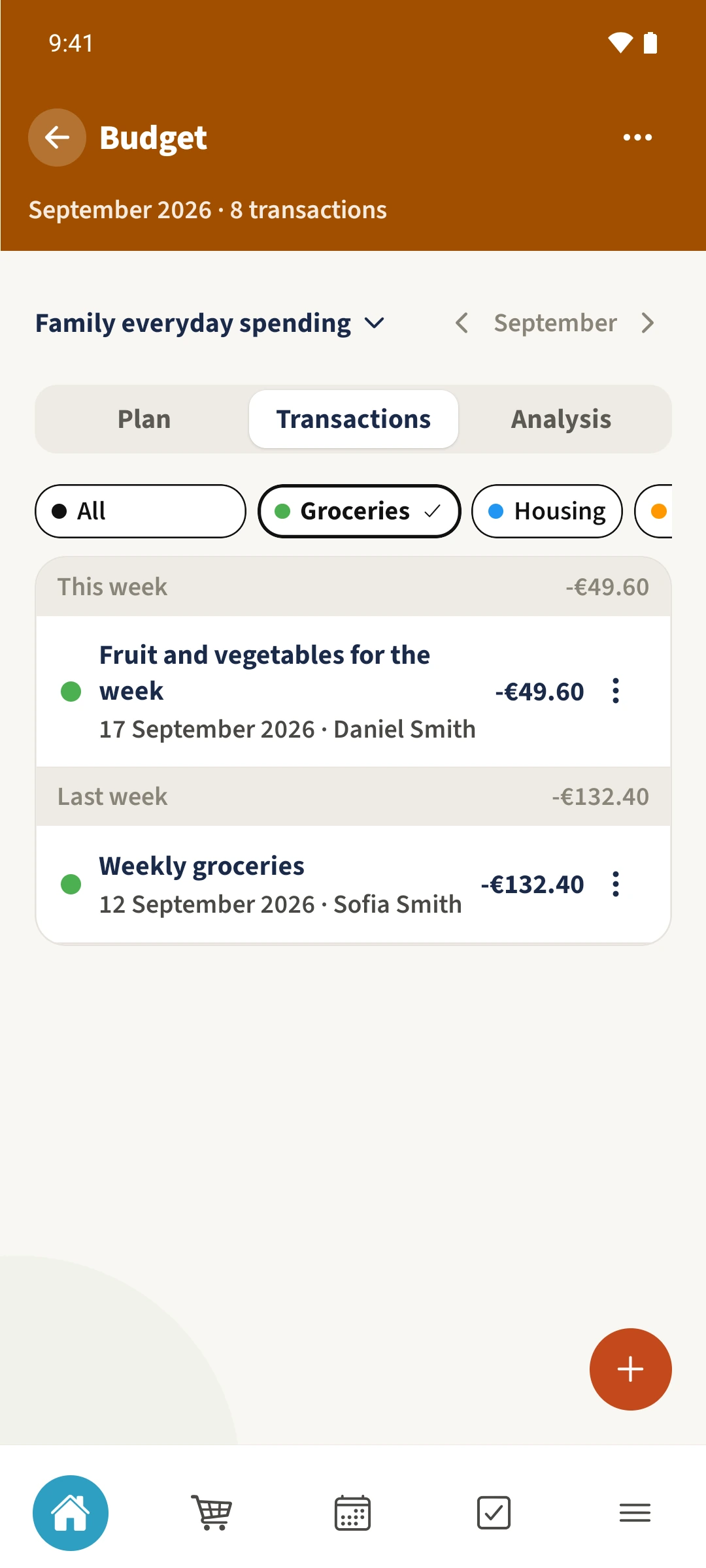
Save the transaction, then tap Groceries above the list. Review it alongside Weekly groceries. Tap All to remove the filter.
- 4
Read the analysis
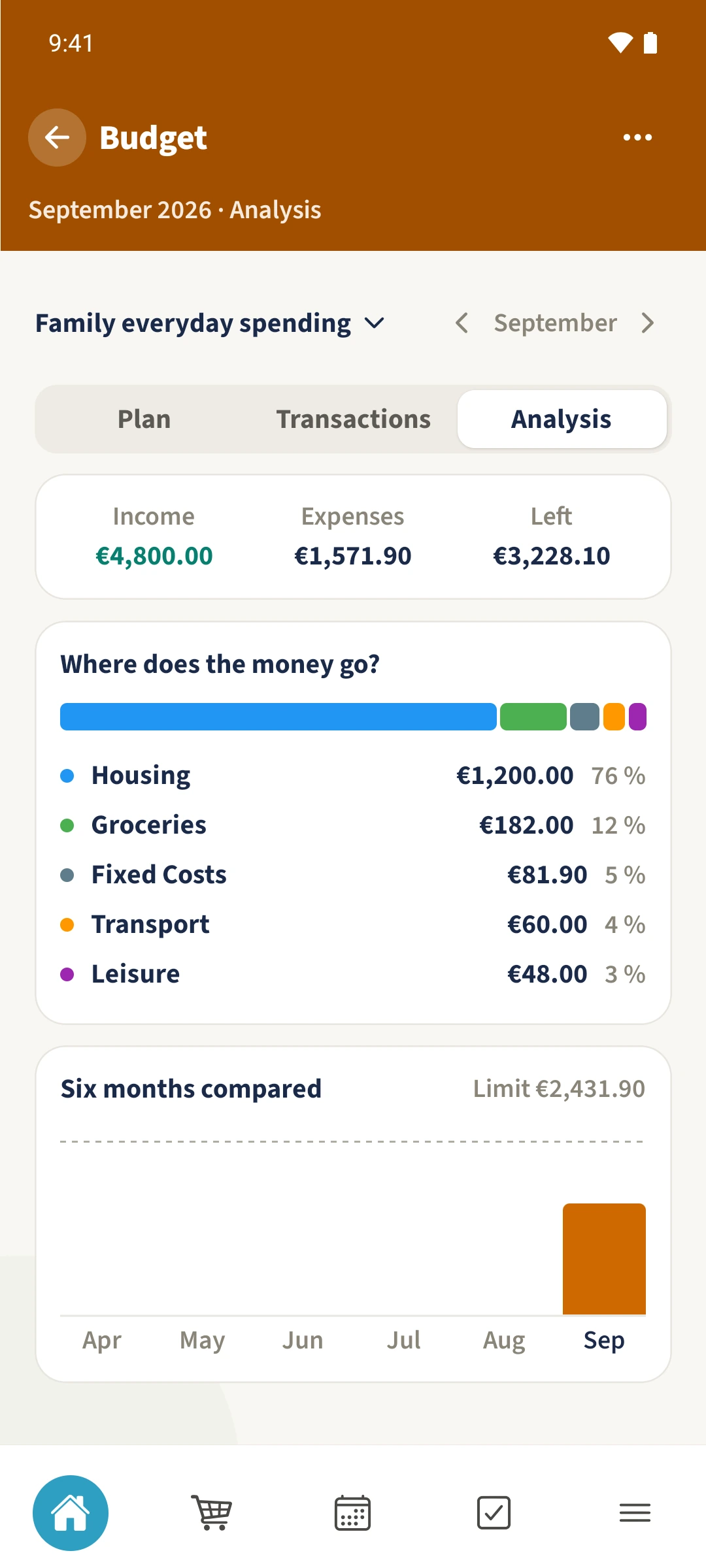
Open Analysis to compare income, expenses and category amounts. The two grocery entries in the example total €182. The view also includes a comparison of six months.
The essentials at a glance
Part 01
Transactions store an amount, date, category, payer and note.
Part 02
The transaction list can be filtered by category.
Part 03
Analysis shows income, expenses and the distribution across expense categories.