
Plan trip days with activities and breaks
A list of interesting places does not show what you want to do together on a particular day.
See the exampleFrom a daily problem to a clear plan
The starting point
A list of interesting places does not show what you want to do together on a particular day.
A practical next step
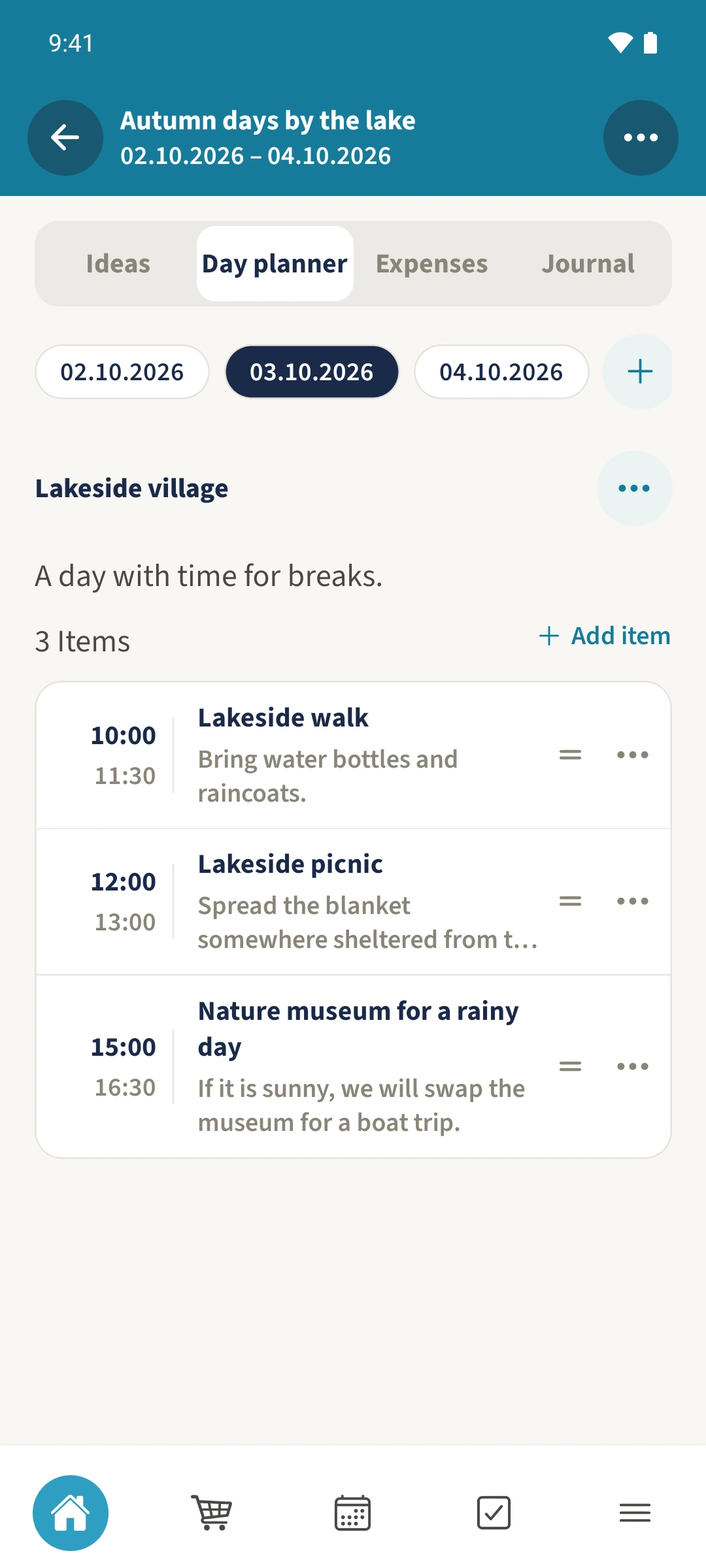
A morning walk, a picnic and an afternoon rain plan turn a collection of ideas into a day you can follow.
Trip planning with Best4Family
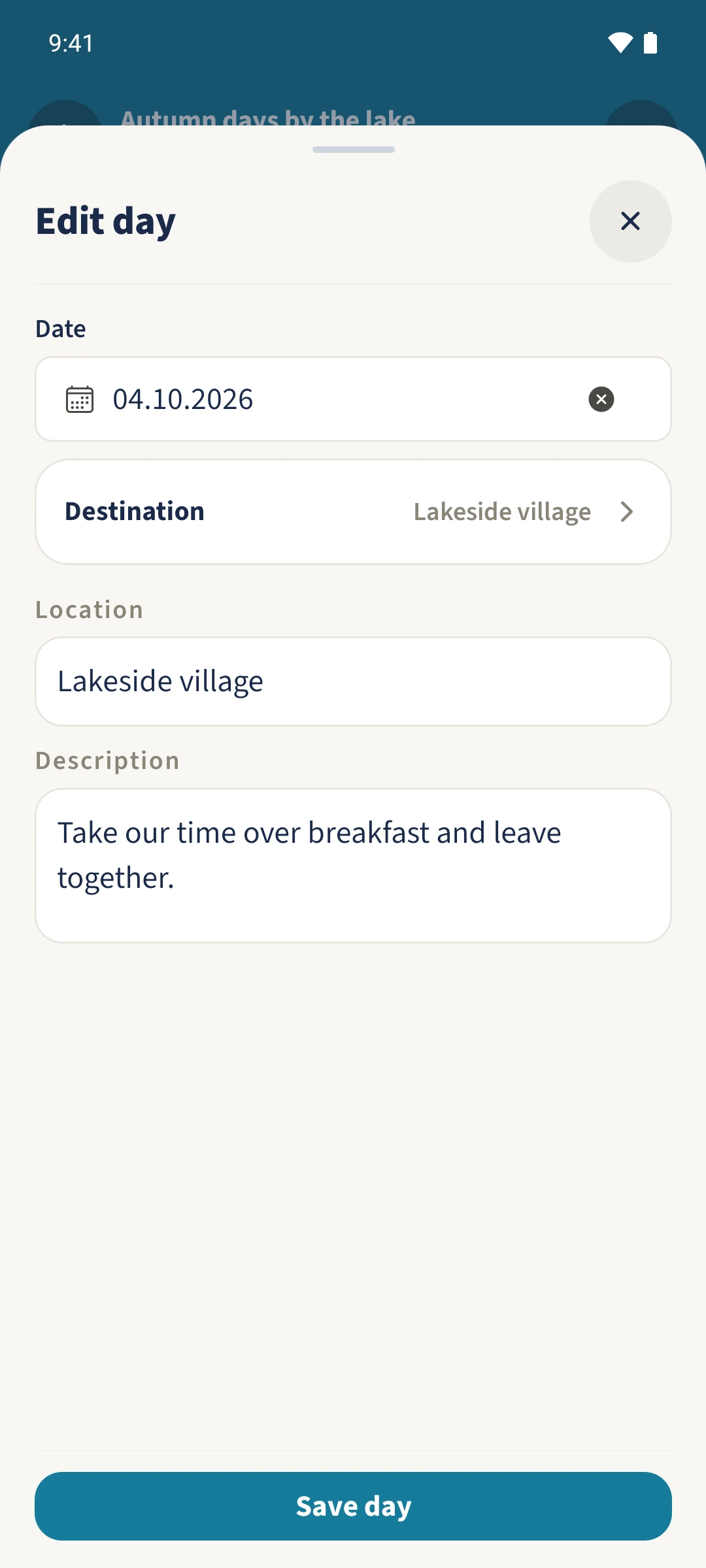
Open Day planner in your trip. Use the plus beside the dates to add a day, or select a saved day and choose Edit from its three-dot menu. Select a day and choose Add item for an activity, meal or break. Set its times and notes, then use the item menu to adjust the order.
Get organised in a few steps
- 1
Add or edit a day
To create a day, tap the plus beside the dates. To change a saved day, select its date, open the three-dot menu beside its location and choose Edit. Set the date, destination, location and description, then tap Save day. The screenshot reopens the existing departure day on 4 October.
- 2
Select the day to plan
Tap the date you want to work on. The example with three activities belongs to 3 October and is separate from the departure day on 4 October.
- 3
Add or edit an activity
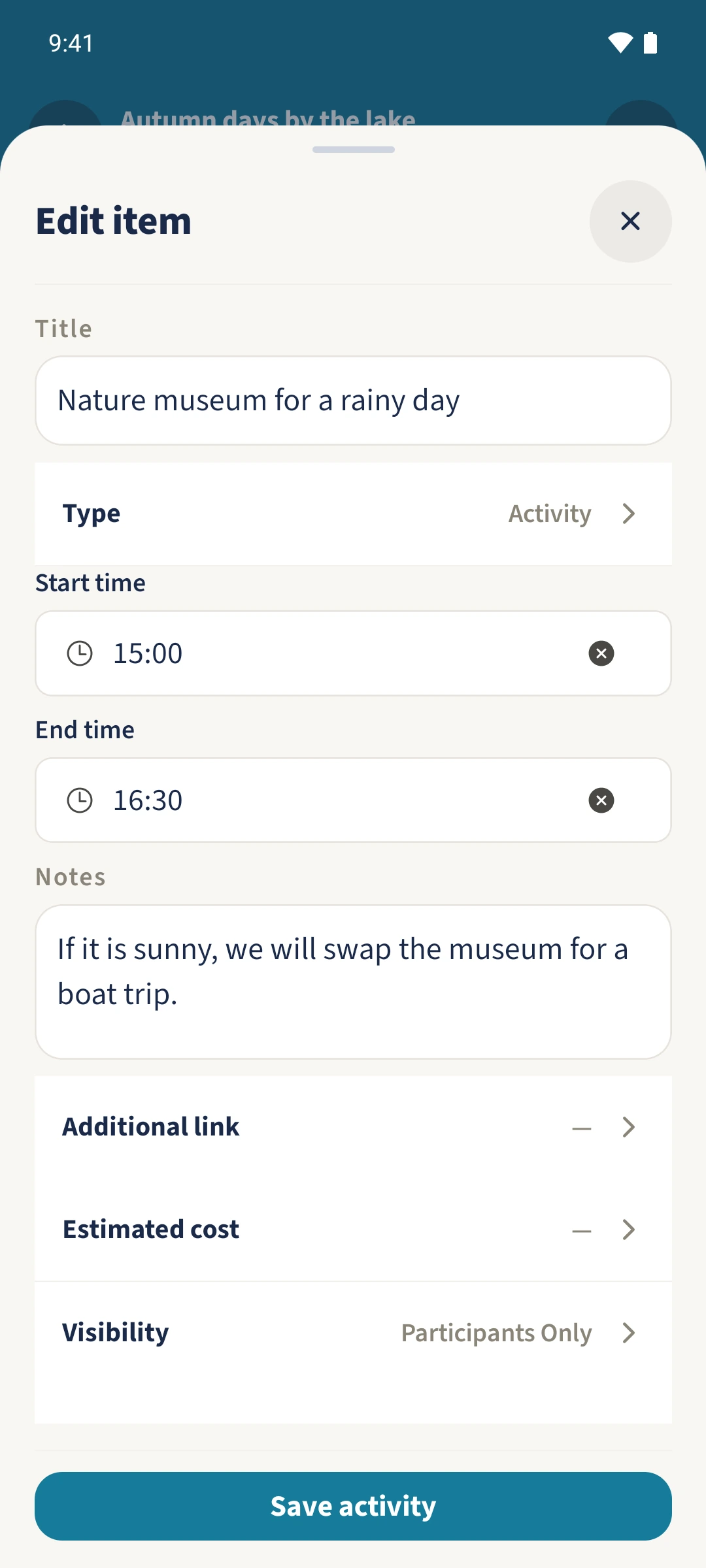
Tap Add item, enter a title, choose the type and add start and end times and notes. Tap a saved activity to edit it. The example sets Nature museum to 15:00–16:30. Tap Save activity.
- 4
Check the order
Open the three-dot menu beside an activity. Use Move up or Move down to place it where it belongs. Check the times, breaks and notes in the saved day plan.
The essentials at a glance
Part 01
Each trip day has a date, destination and optional location details.
Part 02
Activities can include start and end times and notes.
Part 03
The item menu lets you change the order of activities.