
Import a recipe from a website and check it
Copying every ingredient and instruction from a website takes time. An automatic import helps, but the result may still need corrections.
See the exampleFrom a daily problem to a clear plan
The starting point
Copying every ingredient and instruction from a website takes time. An automatic import helps, but the result may still need corrections.
A practical next step
Bring a recipe into your family collection using its web address, then check it before cooking.
Recipes with Best4Family
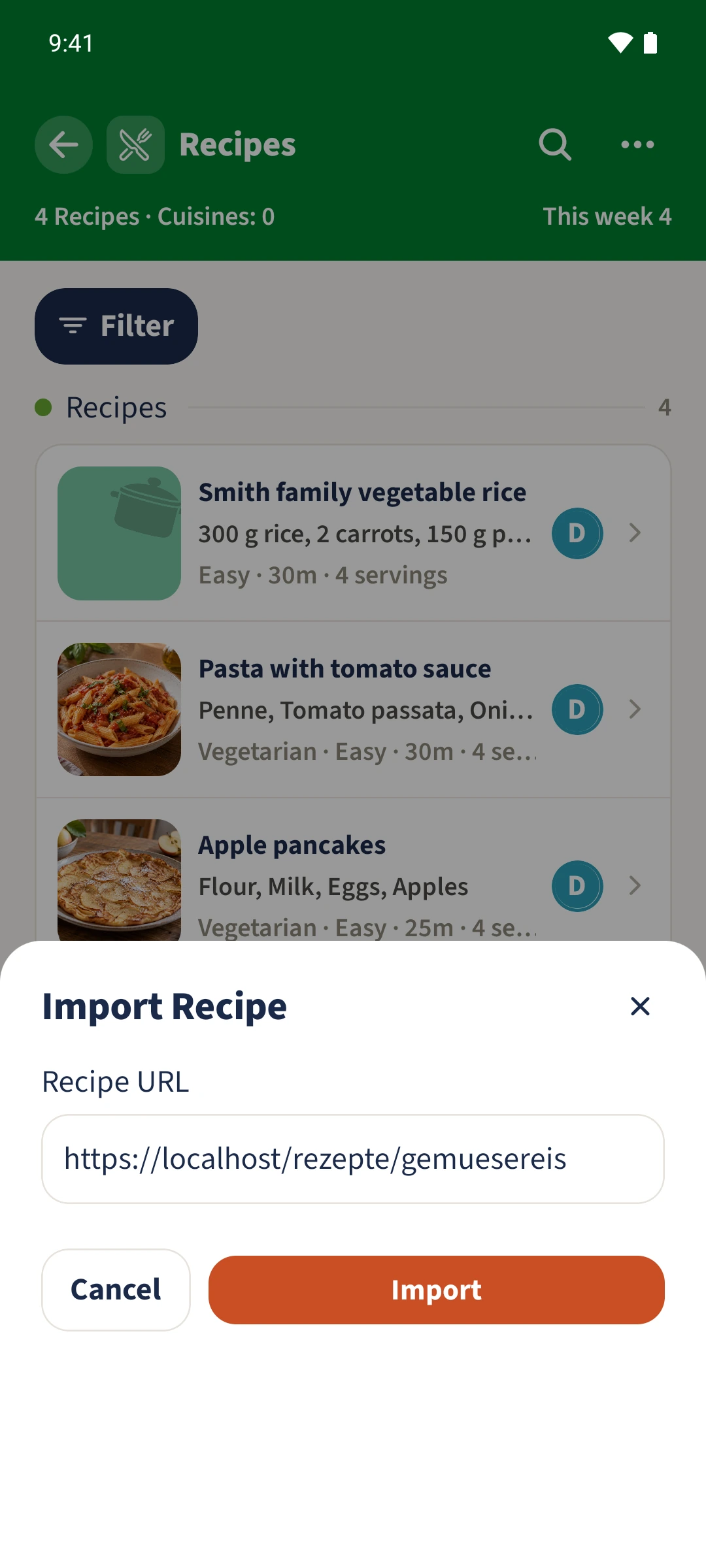
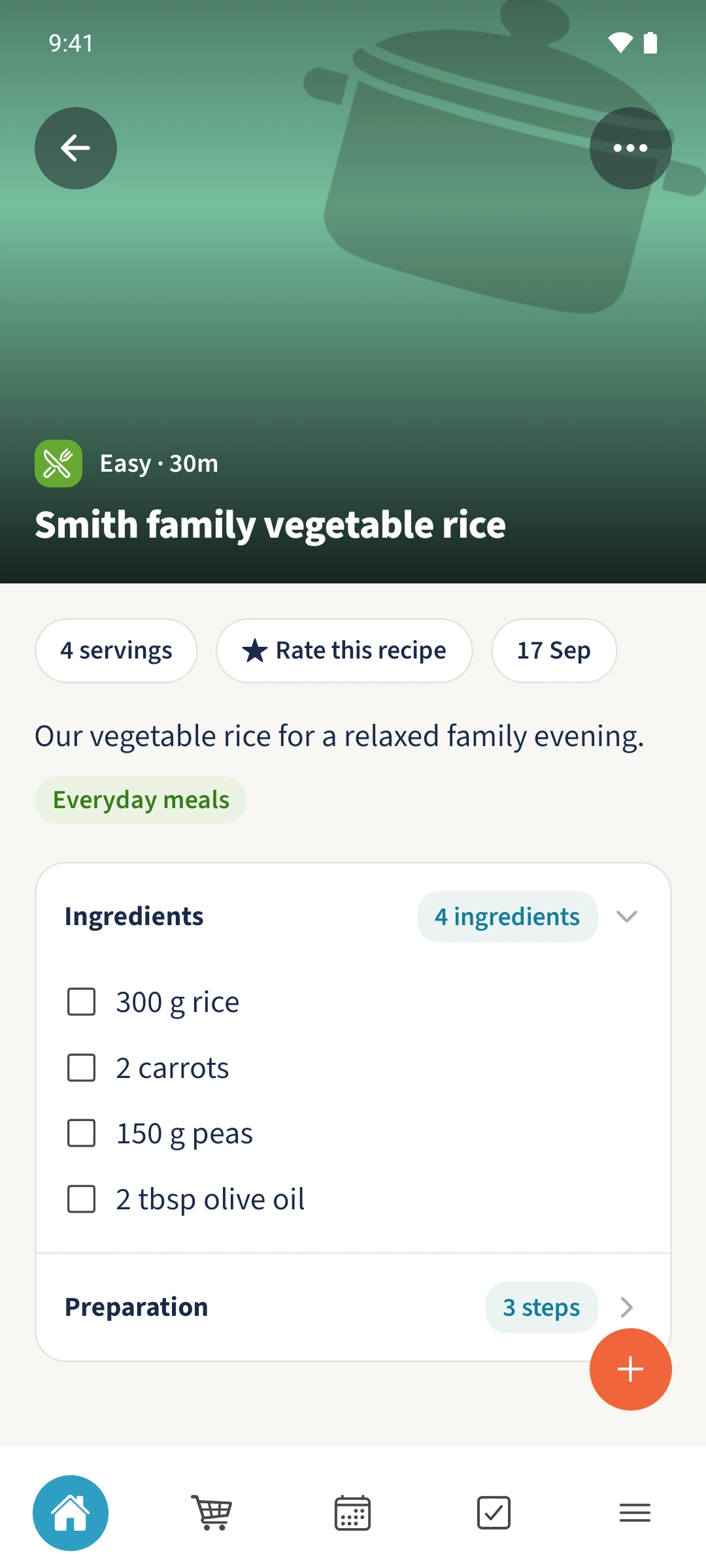
In Recipes, open Actions → Import Recipe. Paste the recipe’s address and tap Import. A successful import is already saved and opens immediately. Review its details and make corrections through Actions → Edit.
Get organised in a few steps
- 1
Paste the recipe address
Copy the full address of a recipe page. Open the three-dot Actions menu in Recipes and choose Import Recipe. Paste the address into Recipe URL.
- 2
Run the import
Tap Import and wait. If successful, the app opens the saved recipe. Importing the same previously used address again opens the existing recipe.
- 3
Check the imported details
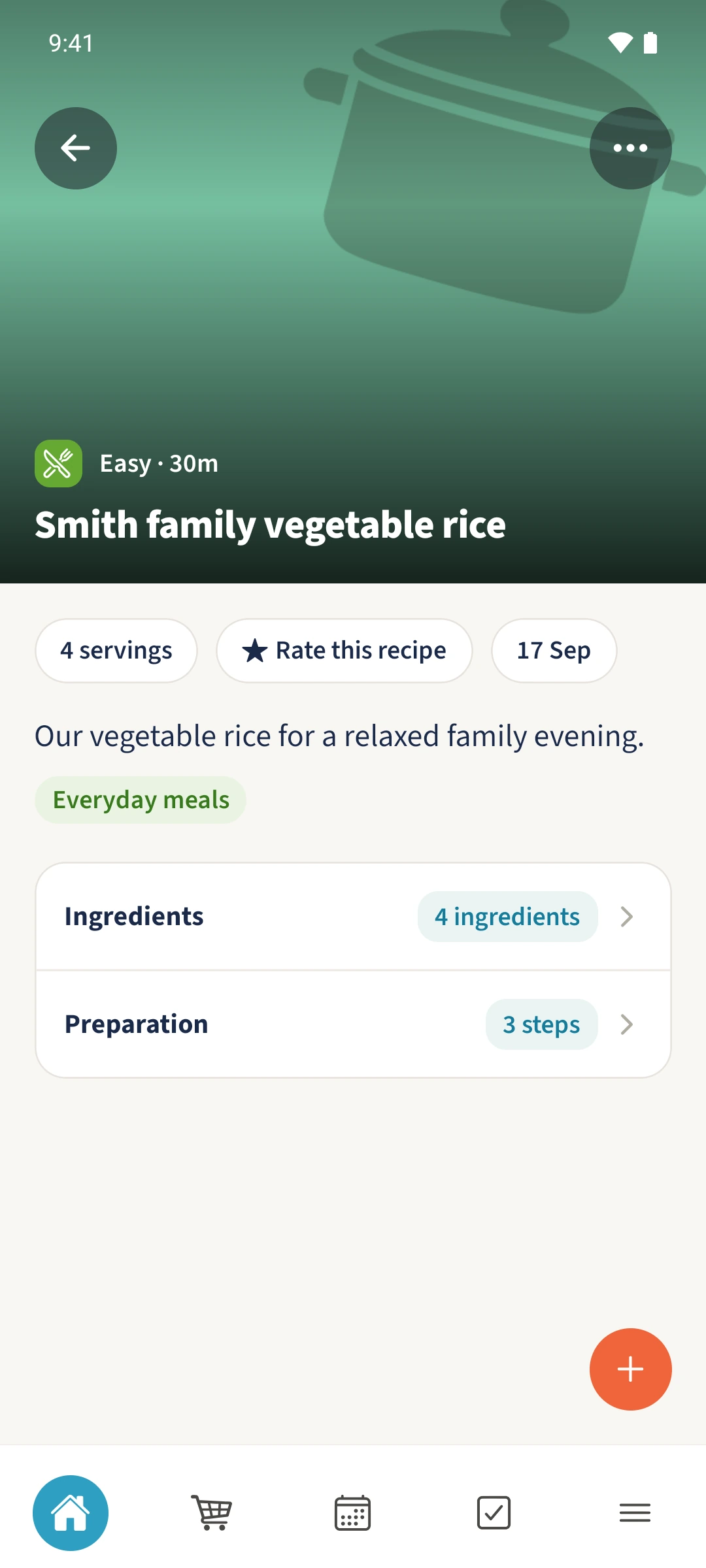
Expand Ingredients and Preparation. Compare quantities, units, steps, servings and times with the source. If a source address is saved, Actions → Open source opens the original page.
- 4
Correct and reopen the recipe
Use Actions → Edit to add missing details or choose a category, then tap Update. Reopen the recipe to check your changes. The example adds a family description, Easy difficulty and the Everyday meals category.
The essentials at a glance
Part 01
URL import saves recognised recipe details in the selected family.
Part 02
A successful Android import opens the saved recipe with its ingredients and steps.
Part 03
You can edit the description, categories and other details after importing.