
Update quantities and notes on your shopping list
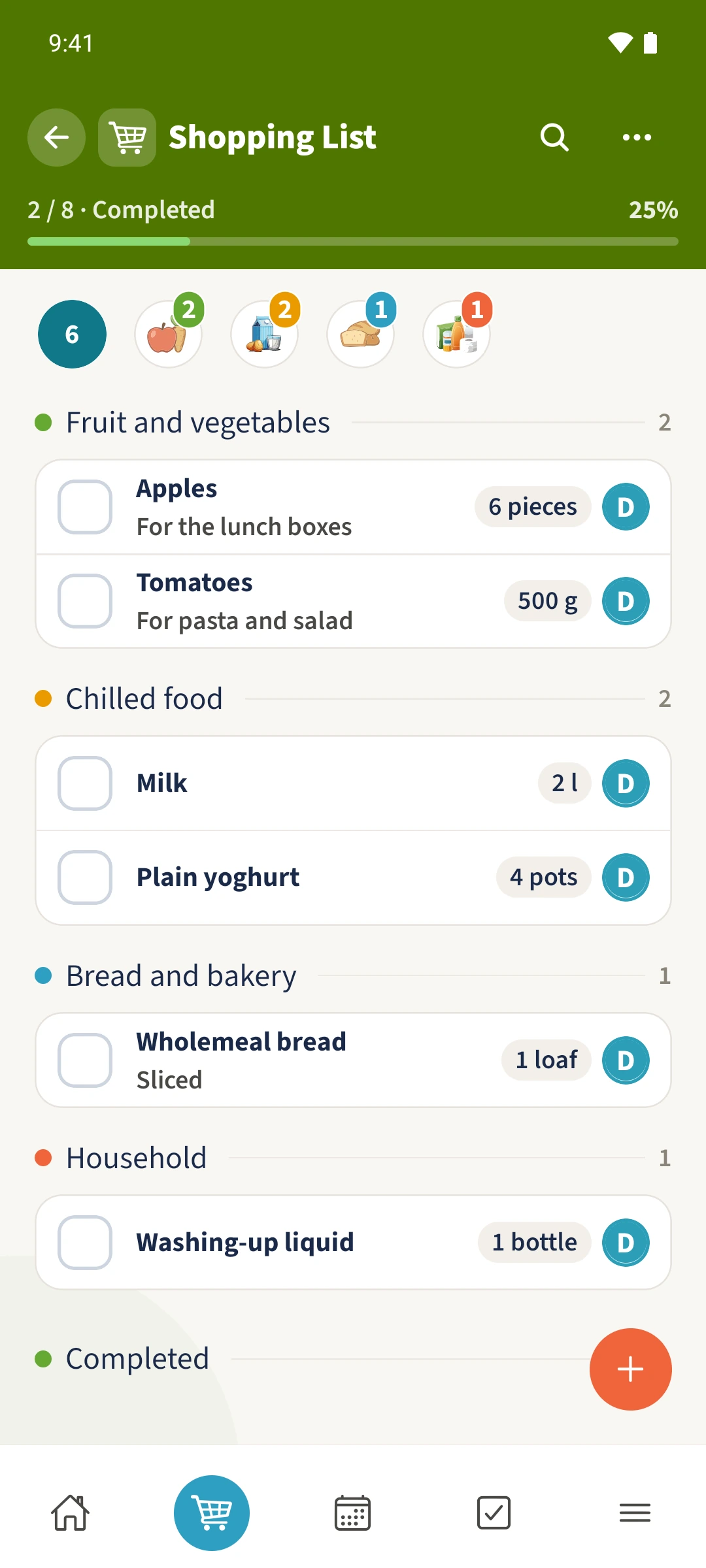
A request to bring more apples does not help if the shopping list still shows the old quantity.
See the exampleFrom a daily problem to a clear plan
The starting point
A request to bring more apples does not help if the shopping list still shows the old quantity.
A practical next step
You need two more apples for a trip. Update the existing item so the person shopping sees the full amount.
Shopping list with Best4Family
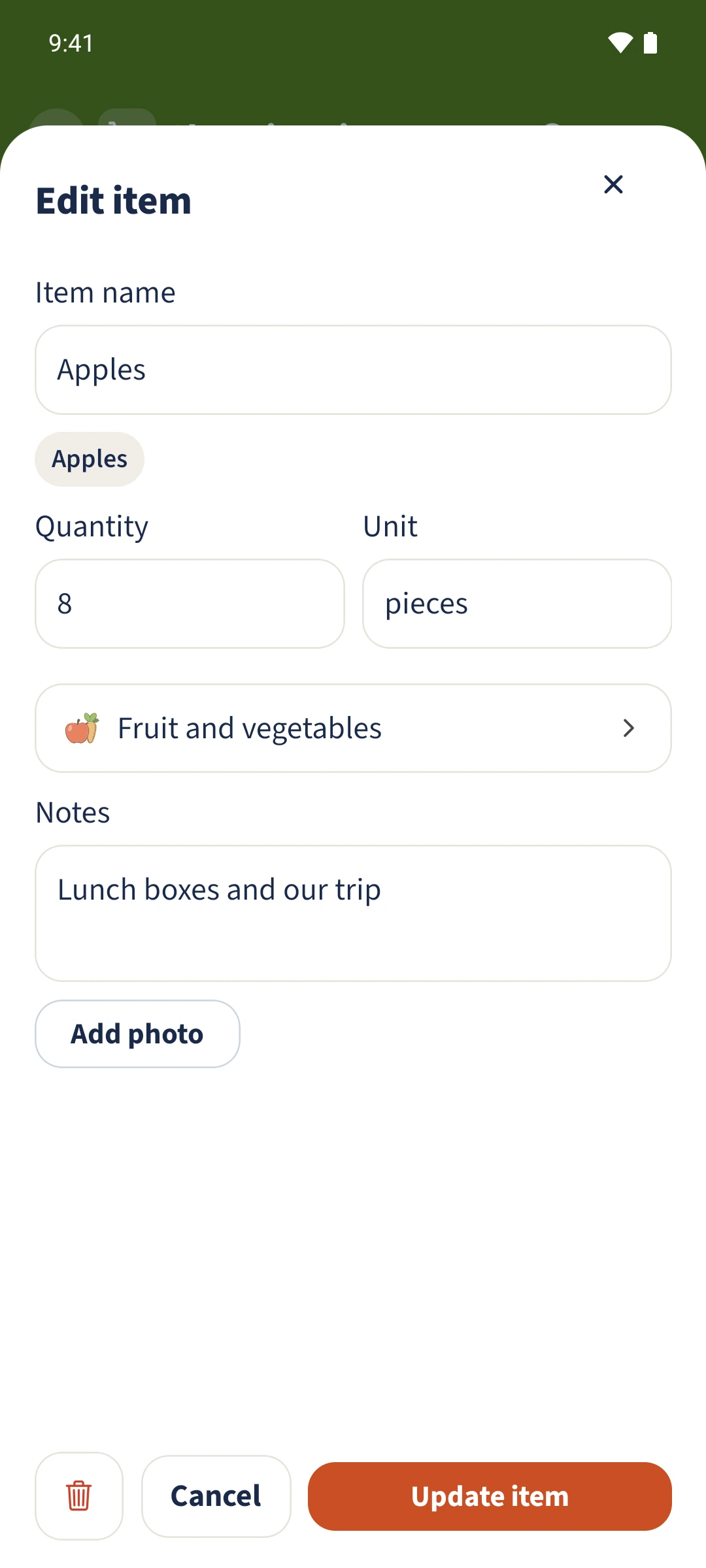
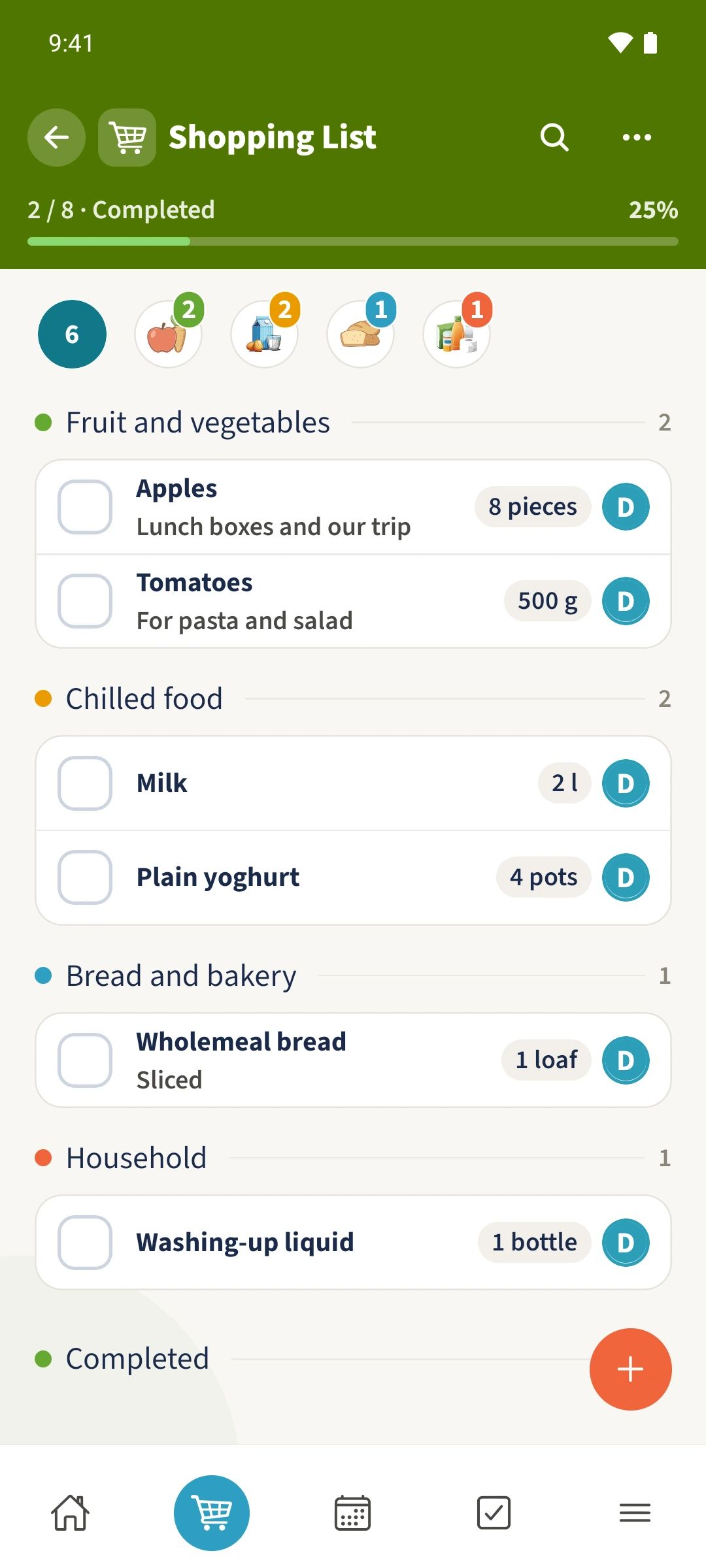
Tap the existing item’s name, change Quantity and Unit if needed, update Notes and tap Update item. The saved amount and note appear beside the same item.
Get organised in a few steps
- 1
Open the existing item
Open Shopping and tap Apples. Check the current amount of six pieces and the note For the lunch boxes.
- 2
Change the total and note
Set Quantity to eight and keep pieces as the unit. Enter Lunch boxes and our trip under Notes.
- 3
Save and check the list
Tap Update item. Check that Apples now shows eight pieces and the new note. Cancel discards unsaved changes.
The essentials at a glance
Part 01
You can edit an existing item’s quantity, unit and notes.
Part 02
Saved amounts and notes are visible in the shopping list.
Part 03
The item remains on the same shared list.