One shopping list for the whole family
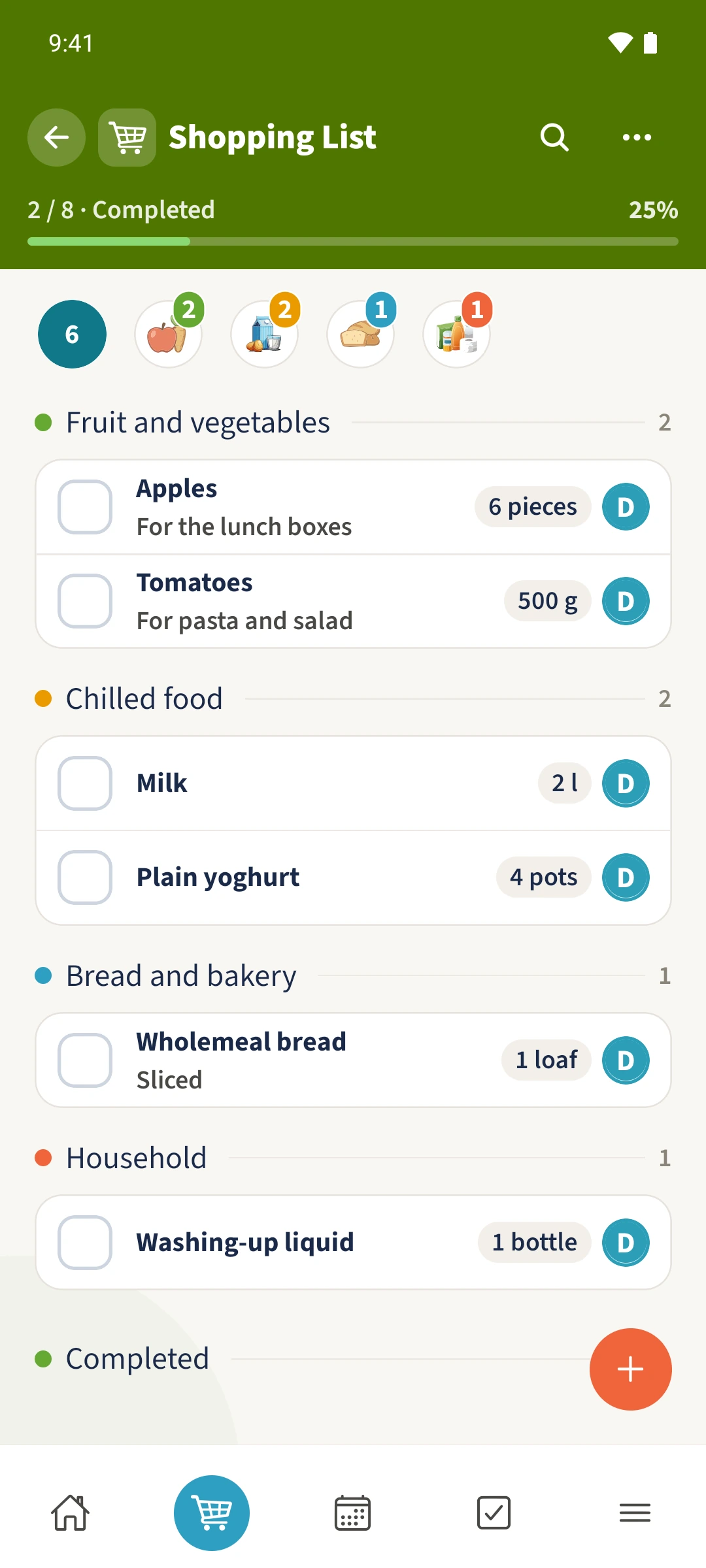
Six apples for lunch boxes and a sliced loaf: keep the item, amount and useful details together.
Your family plans in one place
Shopping requests arrive in different messages. In the shop it can be unclear how much is needed or what is already in the trolley.
 How Best4Family helps
Shopping opens the selected family’s shared main list. Items can have quantities, units, categories and notes. Tick off completed items to keep the progress visible.
Get organised in a few steps
- 01
Open Shopping
Tap the shopping basket in the bottom navigation. Check the shared list for the selected family.
- 02
Add an item and amount
Tap the plus to add an item. Enter its name and a quantity with a suitable unit, such as six pieces for apples.
- 03
Use categories and notes
Choose a suitable category and add a note when helpful, such as For the lunch boxes. Save the item to the shared list.
- 04
Tick off your shopping
Use the checkbox beside an item when it is bought. The progress display shows how many items are complete.