
Add frequently bought items again
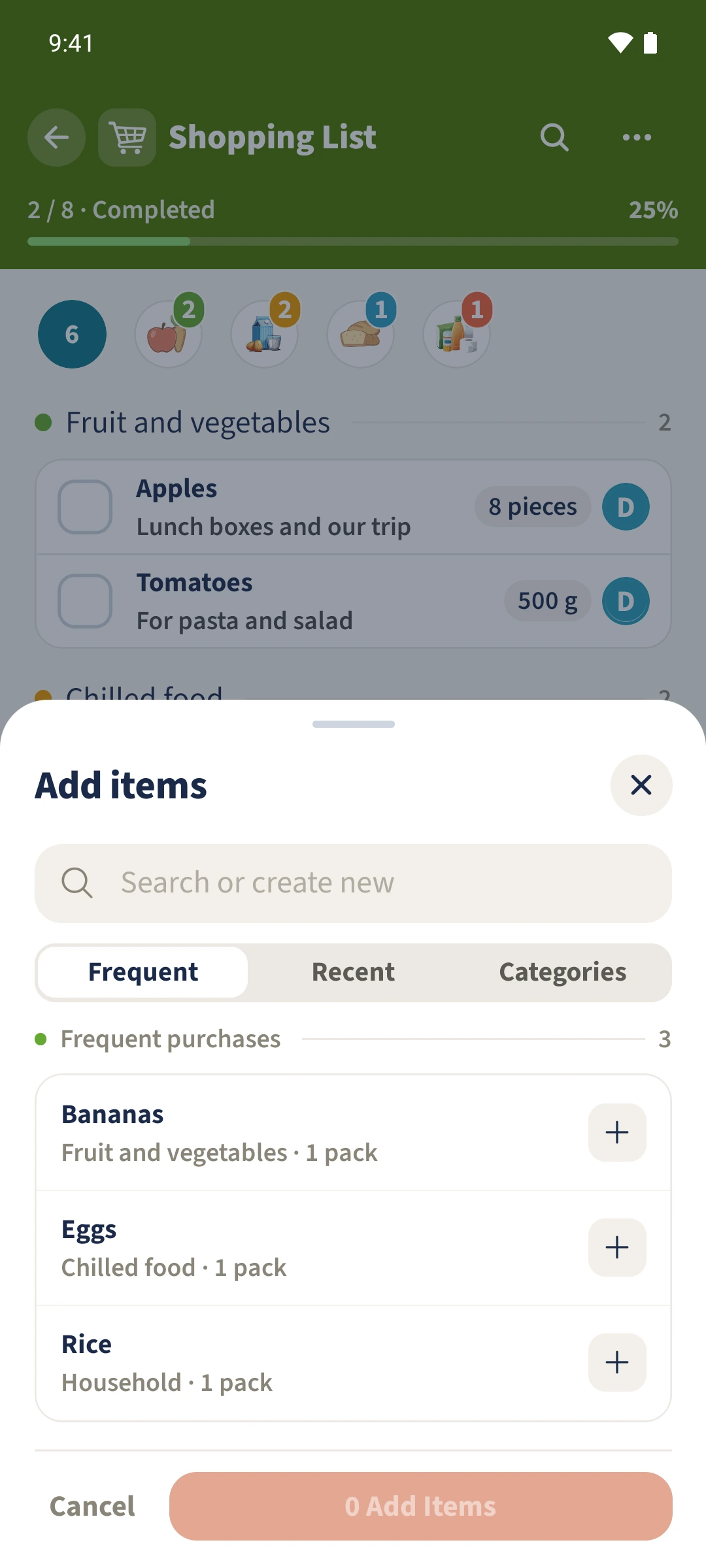
You do not need to type bananas, eggs and rice from scratch every time.
- 1
- Suggestions include frequently and recently used items.
- 2
- You can select several items before adding them.
- 3
- The add button shows the size of the current selection.
Using Shopping list in family life
Regular shopping often includes the same items, making repeated entry of names, amounts and categories unnecessary work.
Tap the plus in Shopping to open Add Items. Choose items from Frequent or Recent, then use the button at the bottom to add your selection to the current list.
How the steps fit together
- 1
Open suggestions
Tap the plus in Shopping. Add Items shows suggestions based on existing shopping history.
- 2
Choose a view
Use Frequent for regular purchases or Recent for recently used items. Categories can narrow the selection.
- 3
Select your items
Tap the plus beside each item you need. Check the selection count on the button at the bottom.
- 4
Add the selection
Tap the button showing your item count, then check the added items and their amounts in the shared list.