
Submit a reward task and check the feedback
A comment and specific feedback help explain what is complete and what still needs doing.
Before you start
A child is waiting for a reward while the parent still needs information or a missing part of the task.
Submit with a comment
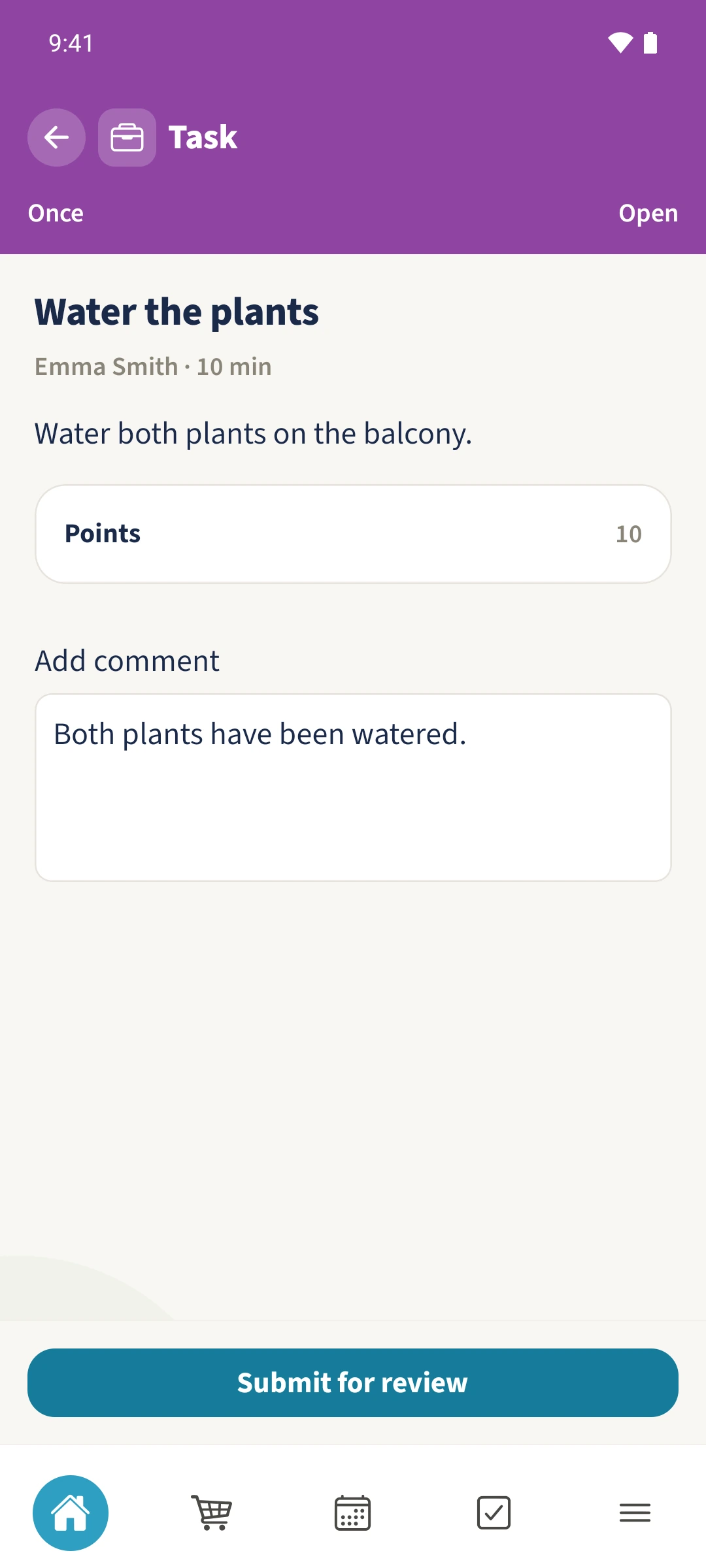
From the assigned account, open Water the plants. Add Both plants have been watered. and choose Submit for review.
Review as an administrator
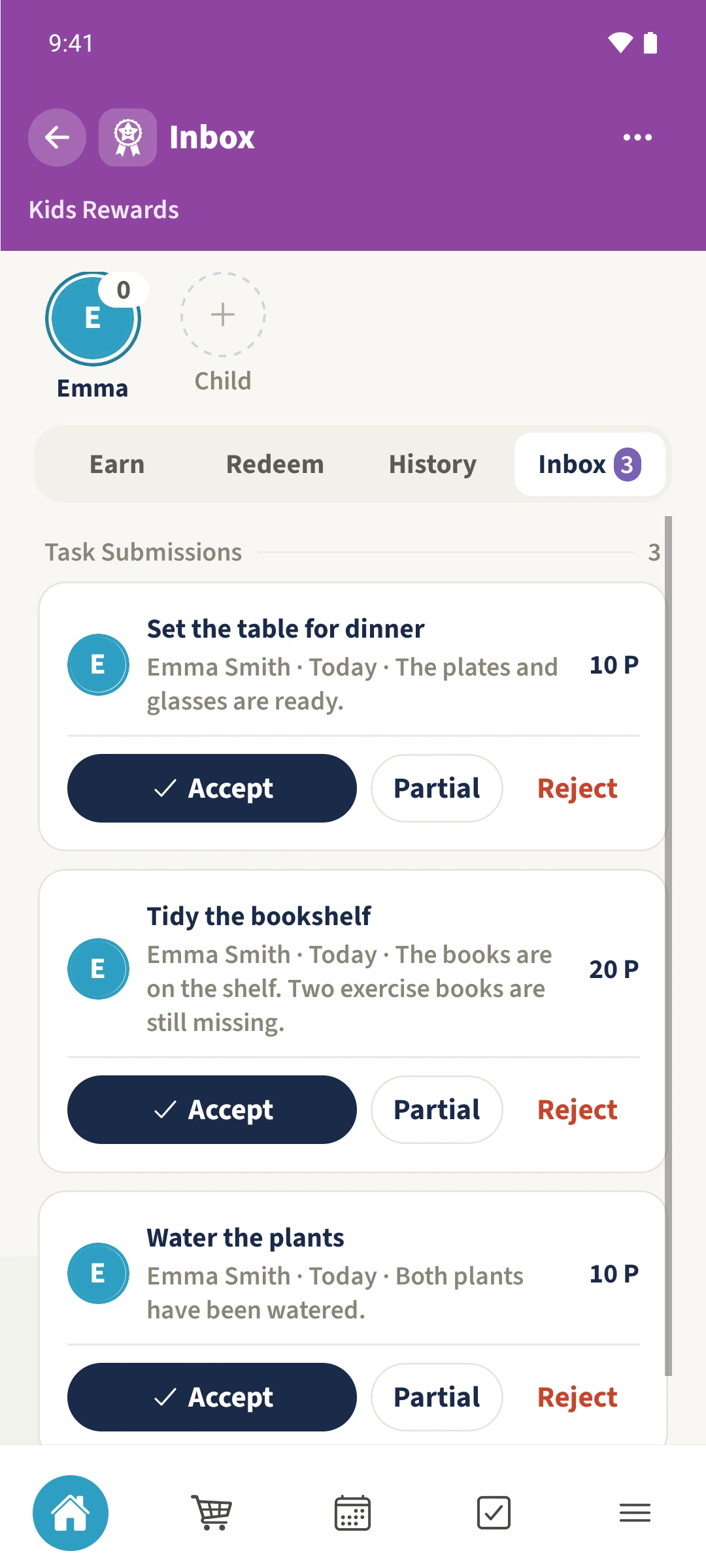
Open Inbox and read the task and comment. Accept credits the whole offered reward and removes the submission from the pending Inbox.
Approve part of the offer
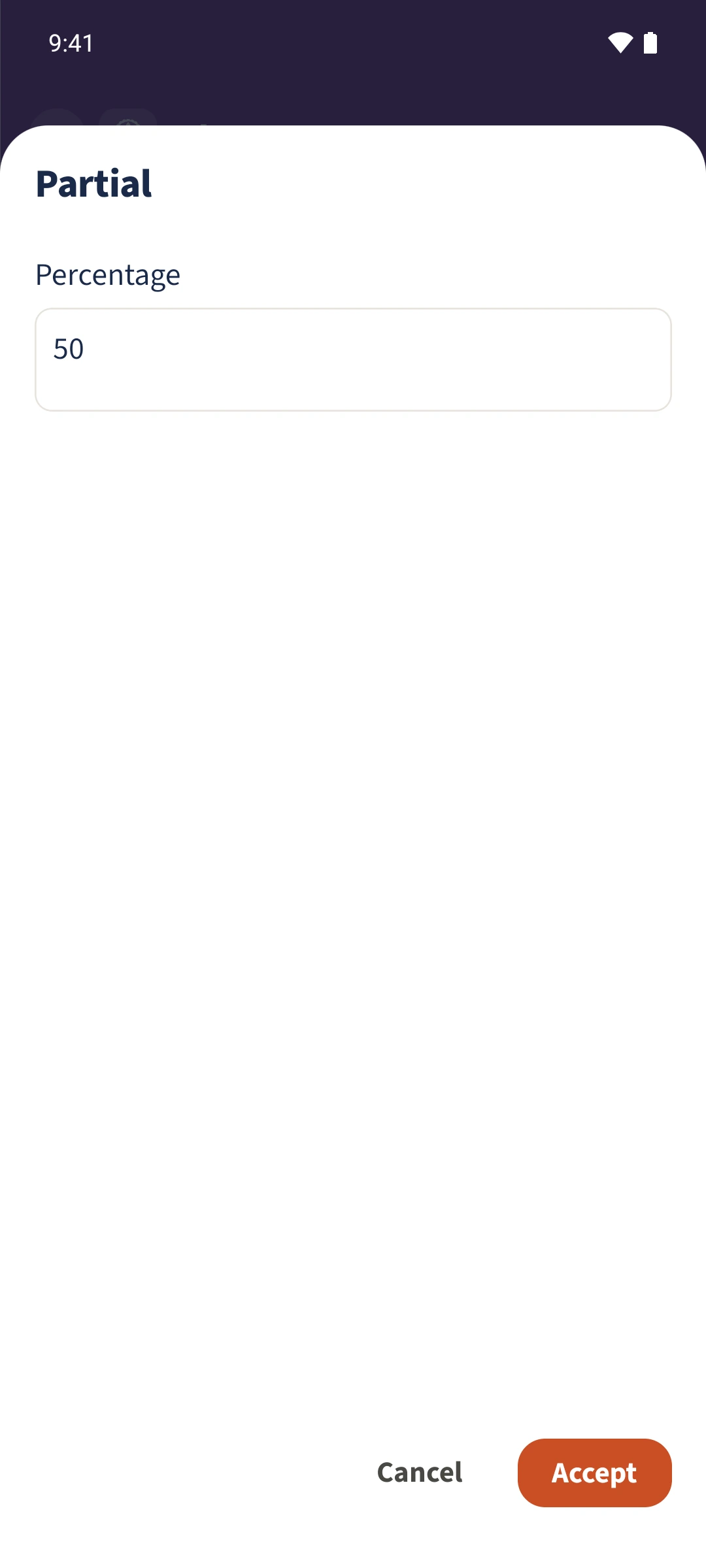
If needed, choose Partial, enter a whole percentage between 0 and 100 and confirm. The bookshelf example receives 50 percent.
Explain a rejection
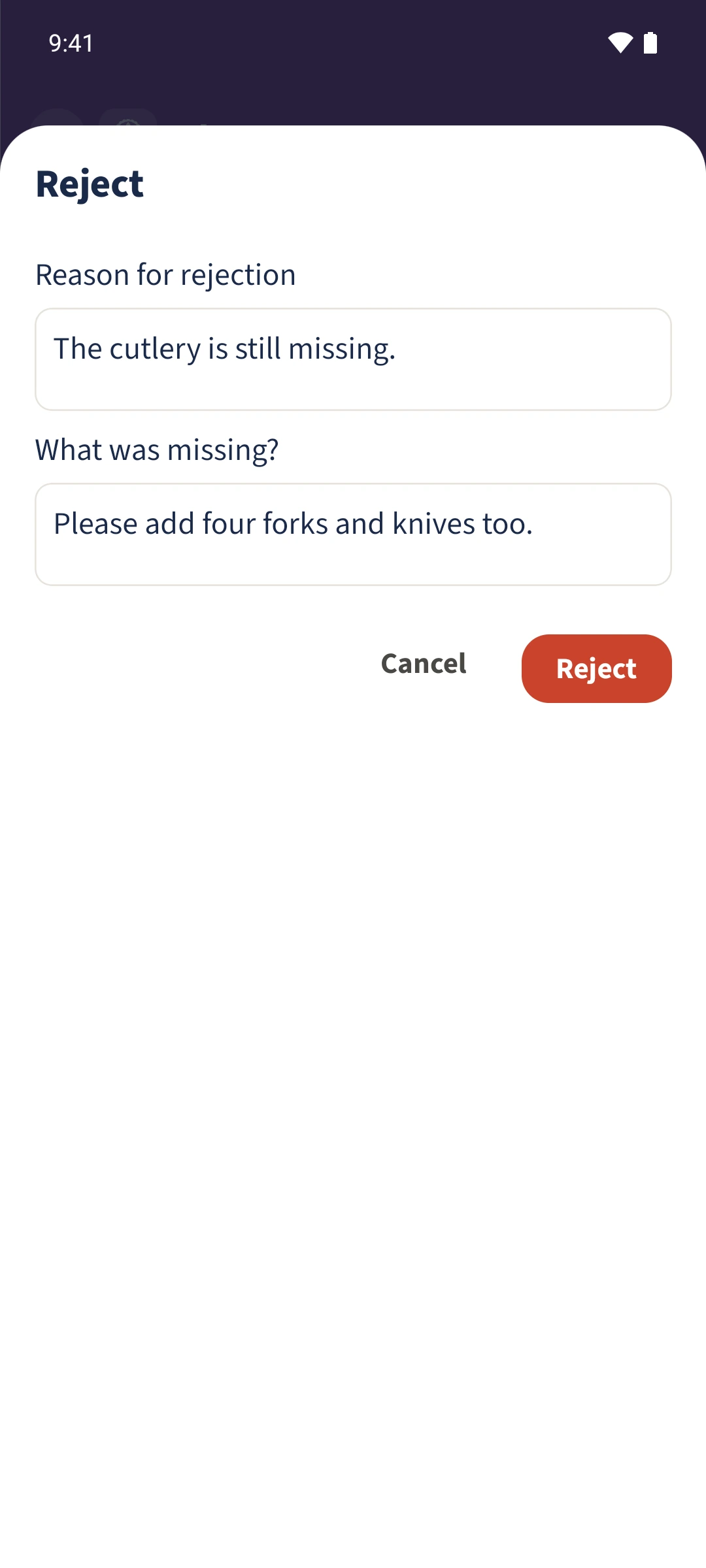
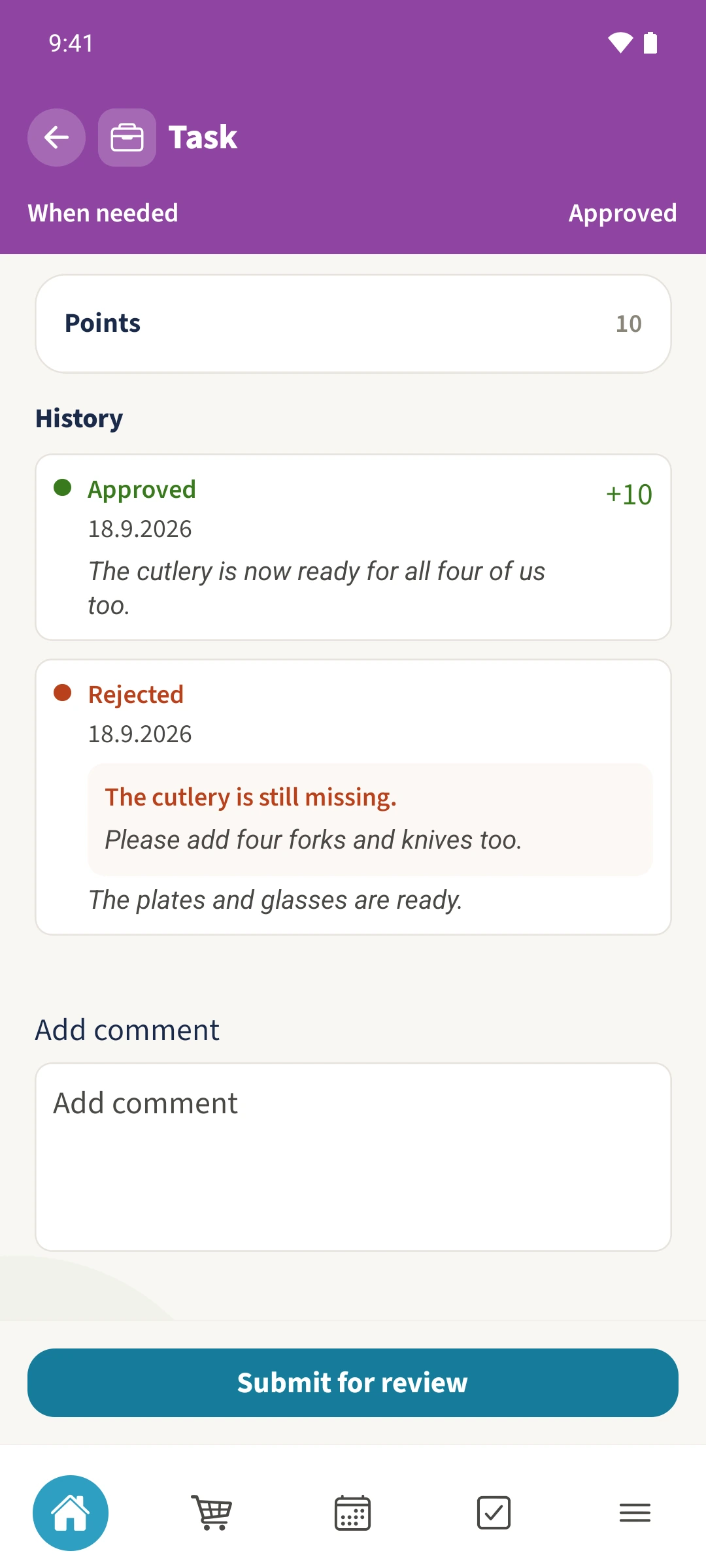
For an unfinished task, choose Reject. Enter a reason and a specific hint under What was missing? The table example is missing cutlery.
Read the feedback and try again
Emma opens the rejected table task and reads both texts under History. After adding the cutlery, she writes a new comment and submits again. Daniel approves that second submission.
All done
From the child’s account, open the assigned task, add a comment if useful and choose Submit for review. A family administrator reads it in Inbox. Accept approves the full offer; Partial approves a percentage. Reject records a reason and a hint so the child can improve the result and submit again.