Connect kids’ tasks to agreed rewards
A specific task and a reward discussed in advance make your agreement visible.
Your family plans in one place
A spoken request can leave it unclear what needs doing and which reward was agreed.
 How Best4Family helps
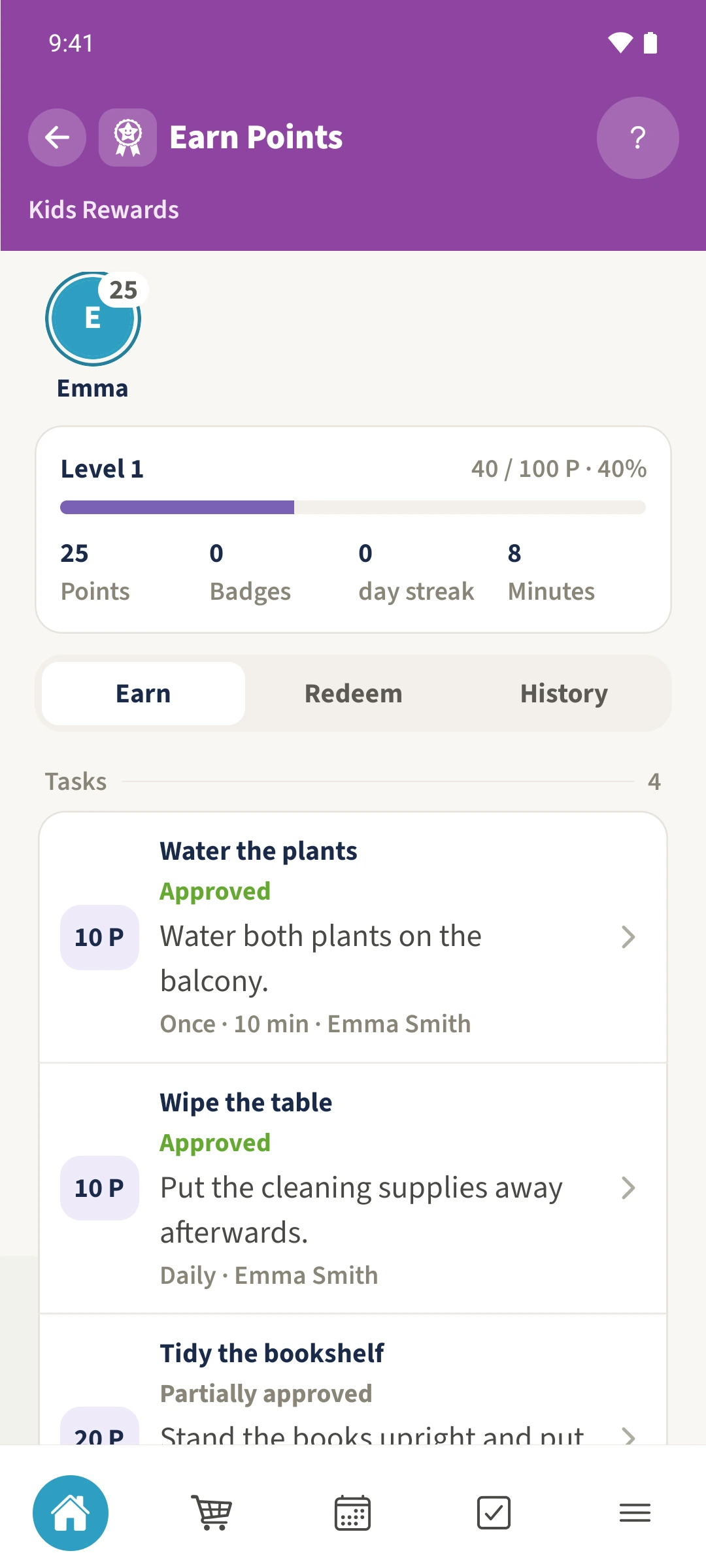
Open Kids Rewards and, as a family administrator, choose Actions and Settings. Enable the module if needed. Under Tasks, use Add Task to enter the title, description, points or minutes and assigned person. Leave Parent approval on. The child opens the task from their own account and submits it for review; you check it in Inbox.
Get organised in a few steps
- 01
Create a task as an administrator
Open Kids Rewards, Actions and Settings. After enabling Enable Rewards, choose Tasks and use Add Task from the action menu.
- 02
Make the agreement specific
Enter Set the table for dinner and a description. Choose 10 points, Emma under Assign to and the desired Recurrence. Leave Parent approval enabled and save.
- 03
Submit from the child’s account
Emma finds her tasks under Earn. She opens one and, after doing the work, chooses Submit for review. A comment explains what she did.
- 04
Review it together
Daniel opens Inbox. It shows the task, child, comment and offered points. He checks the result and decides what to approve.