
Timetable in detailDraft · publication pending
Show a timetable in the family calendar
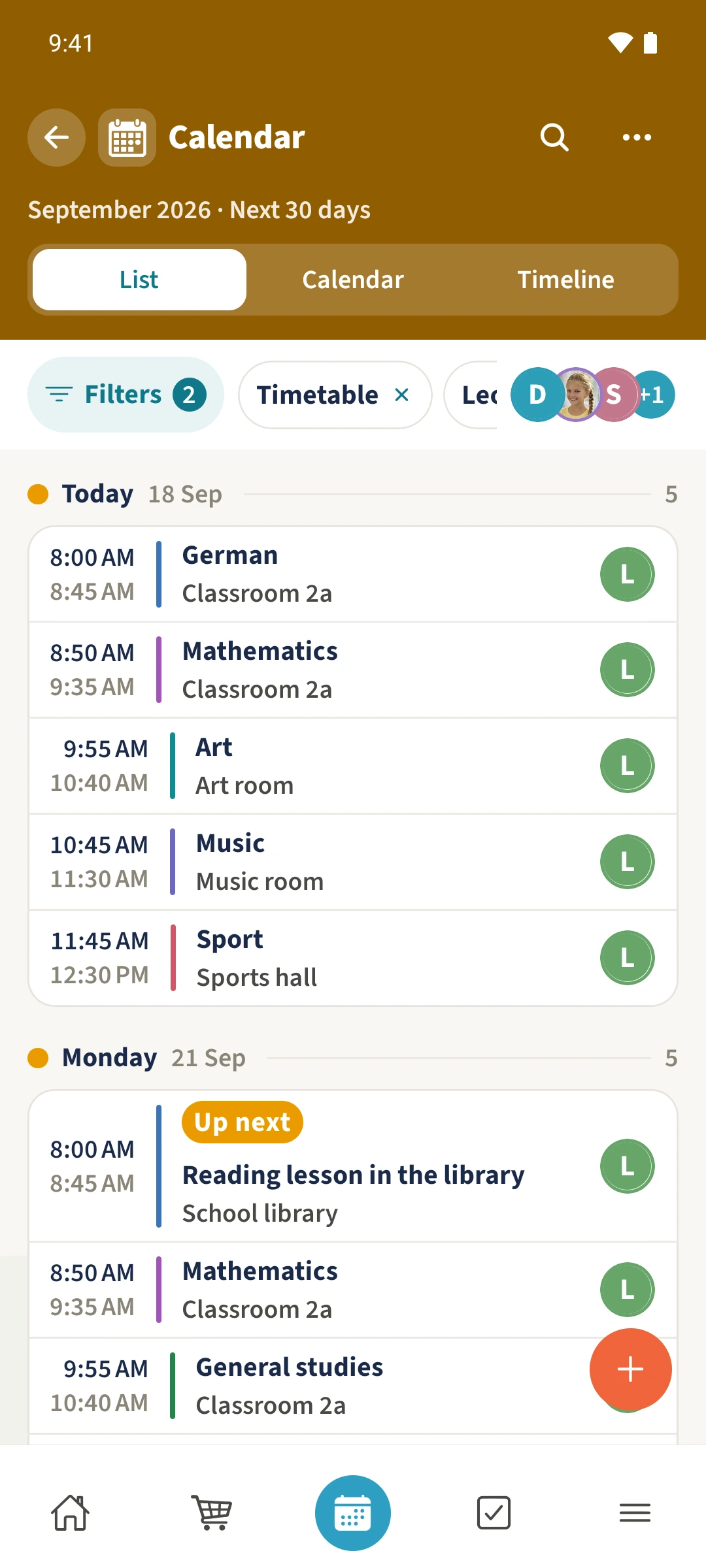
Leo’s lessons and the one-off library visit should also be visible with the family’s calendar.
The main features at a glance
- 1
- The calendar source filter can display timetables.
- 2
- The 21 September lesson uses the changed title and location saved in Leo’s plan.
- 3
- Displaying the plan in Calendar does not create a separate ordinary appointment.
Why it helps
Using Timetable in family life
Recurring lessons need to be findable alongside your other calendar sources.
Open Calendar, then Filters and its source selection. Choose Timetable and the required plan, then tap Apply. The calendar displays calculated occurrences, including saved exceptions.
From a task to a shared view
How the steps fit together
- 1
Choose the source
Open Calendar in the bottom navigation and then Filters. Choose Timetable under Sources.
- 2
Choose the plan
Under Timetable, keep Leo’s school week selected and deselect Emma’s plan. Tap Apply.
- 3
Check the occurrence
The list shows Reading lesson in the library on 21 September, 08:00–08:45, with School library as its location and Leo as its person.