
Plan holidays and days off together
A few days off together are easier to plan when the whole period is visible in the calendar.
- 1
- You can add your own holidays and days off.
- 2
- One entry can cover several days.
- 3
- Saved details include the date range and notes.
Using Calendar in family life
A message about time off may be forgotten when other appointments are added. The final day is especially easy to overlook.
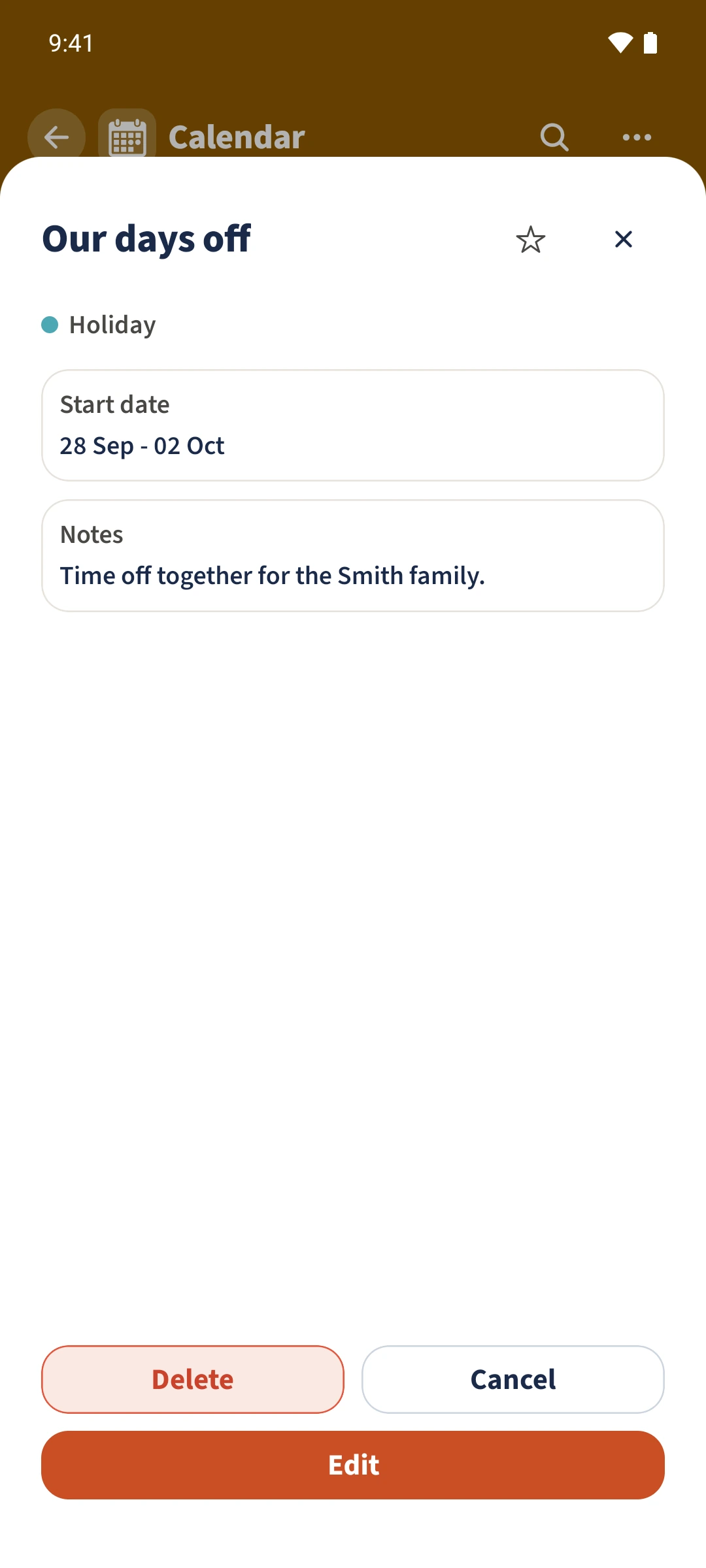
Create a holiday entry from the calendar’s additional actions. Give it a clear name, select the appropriate type, enter its start and end dates and add any useful notes.
How the steps fit together
- 1
Add your days off
Open the three-dot menu in Calendar and choose the holiday action. Enter a name such as Our days off and choose the appropriate type.
- 2
Enter the whole period
Set both the first and last day. In this example the family’s break runs from 28 September to 2 October 2026.
- 3
Add a note and save
Add any shared planning information, save the entry and open it from the calendar to check the dates and note.