
Compare restaurants by cuisine, location and price
A list of names is not enough when you need a place with the right cuisine, location and price range.
See the exampleFrom a daily problem to a clear plan
The starting point
A list of names is not enough when you need a place with the right cuisine, location and price range.
A practical next step
Italian food by the town park or a vegetarian lunch in the old town: clear details make the choice easier.
Restaurants with Best4Family
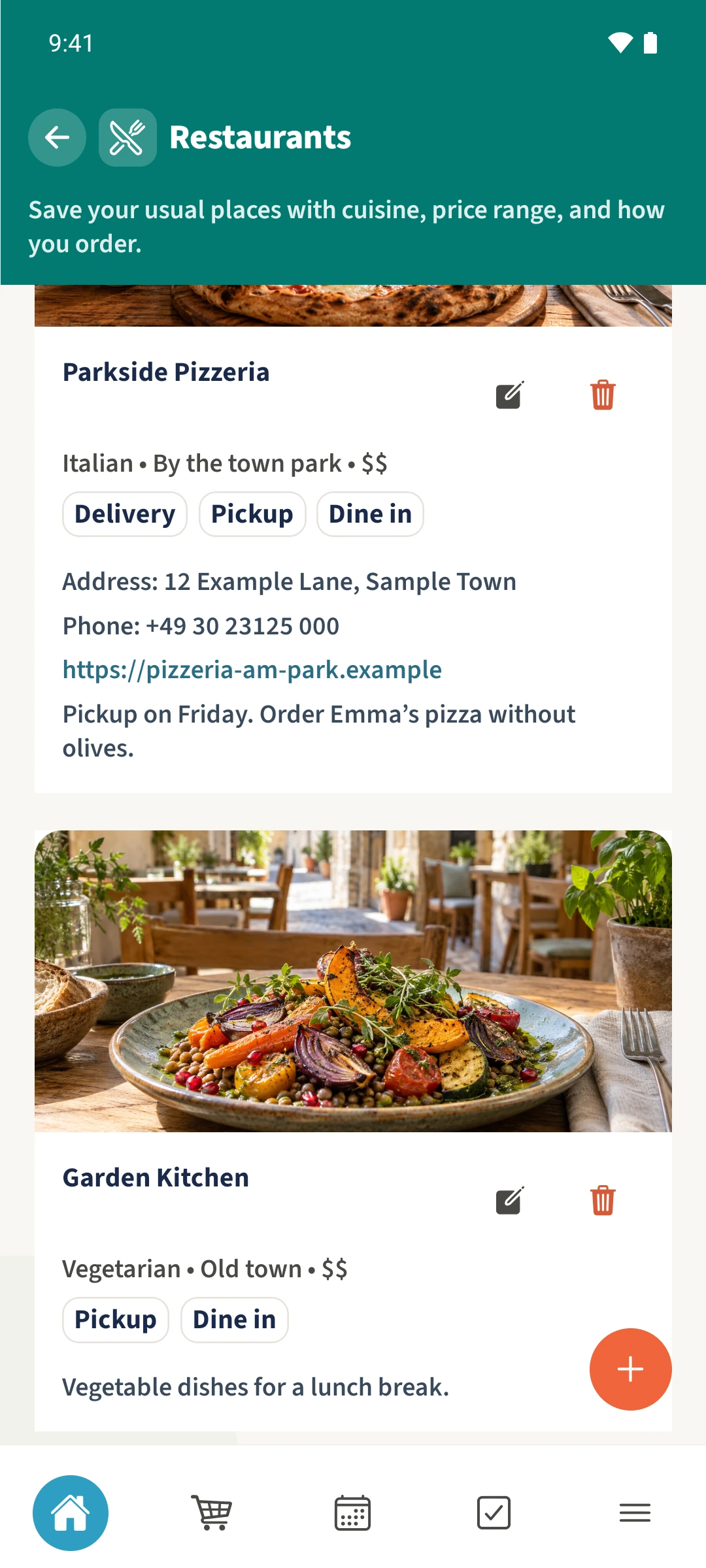
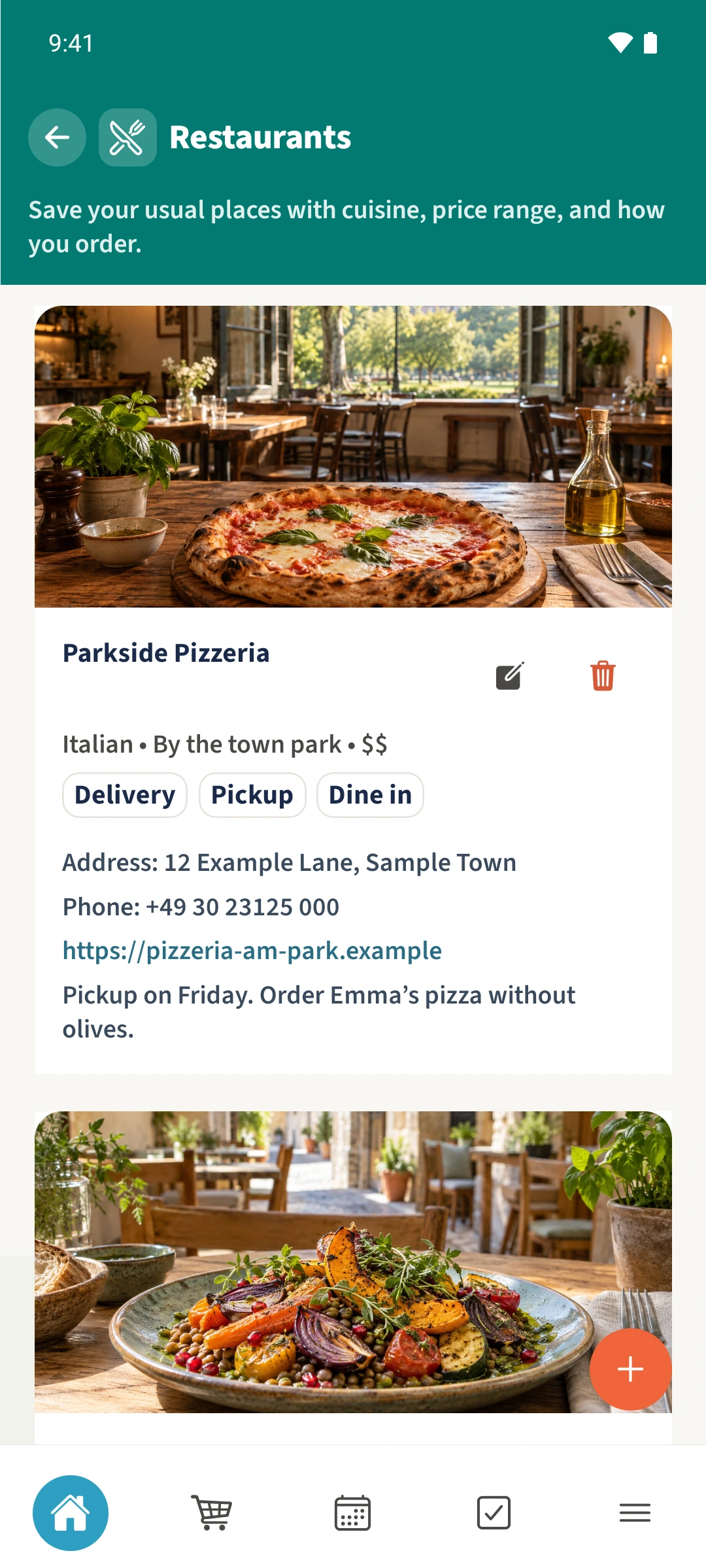
The Android restaurant list shows cuisine, location and price range below each name. Compare these details and the service options as you browse. Add missing information with the pencil icon. This Android list does not currently have a search or filter bar.
Get organised in a few steps
- 1
Browse the saved places
Open Restaurants and scroll through the list. Read the cuisine, location and price range beneath each name, together with Delivery, Pickup and Dine in.
- 2
Make the details consistent
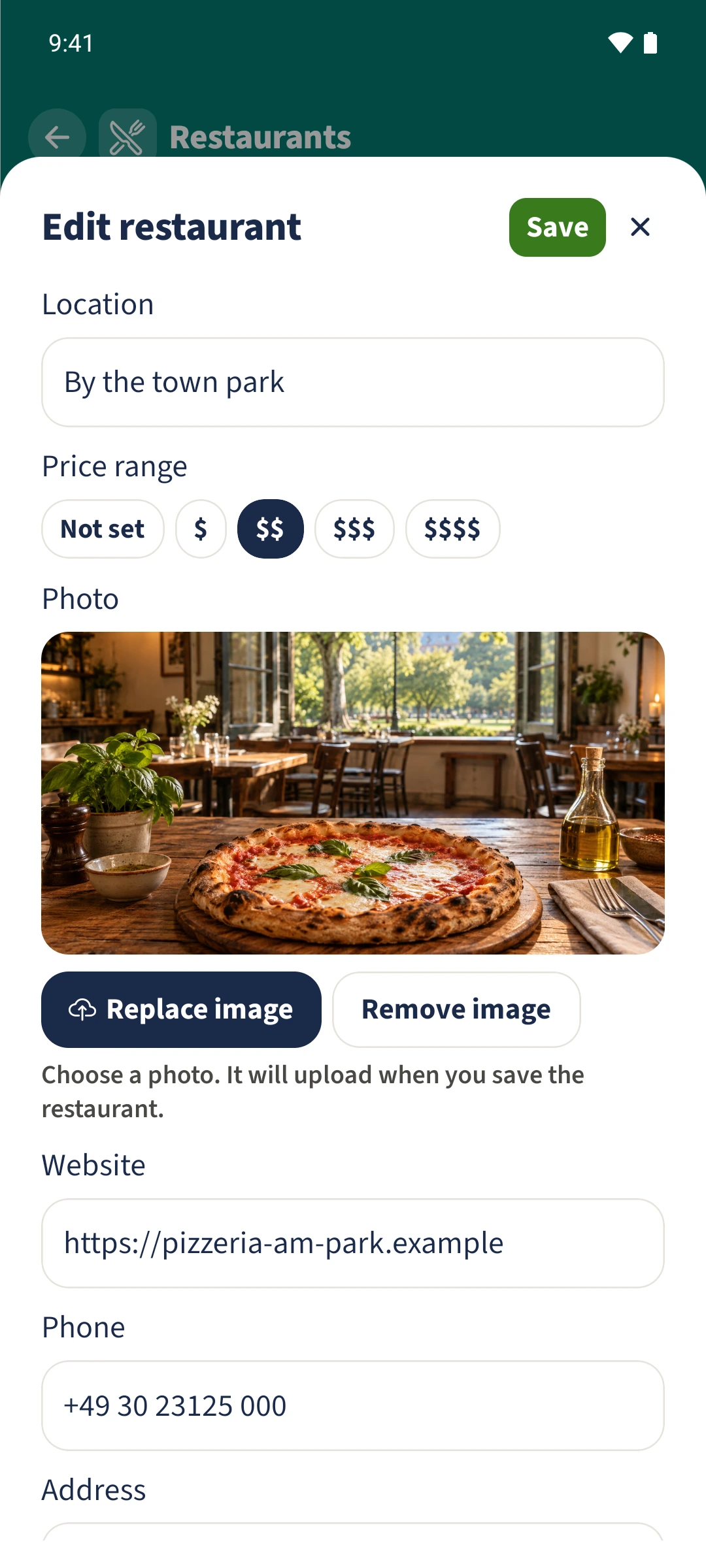
Tap a restaurant’s pencil icon. Choose a suitable cuisine, enter a recognisable location and scroll to Price range. Agree as a family what each price level means.
- 3
Save and compare
Save your changes and compare the cards again. Contact details and a short family note can help you decide. Place an order or make a booking directly with the restaurant afterwards.
The essentials at a glance
Part 01
Restaurant cards display the saved cuisine, location and price range together.
Part 02
Chosen service options appear on the restaurant card.
Part 03
The pencil icon lets you add or correct details.