
Plan a restaurant meal with pickup details
Pizza is planned for Sunday. Keep the restaurant and the time to leave for pickup in the weekly meal plan.
- 1
- Saved family restaurants can be selected as meals in Meal Planner.
- 2
- The meal stores a service option, optional time and note.
- 3
- The weekly plan shows the restaurant, time and service option together.
Using Restaurants in family life
A restaurant meal or takeaway can be missed during weekly planning, so you plan another dinner and buy ingredients you do not need.
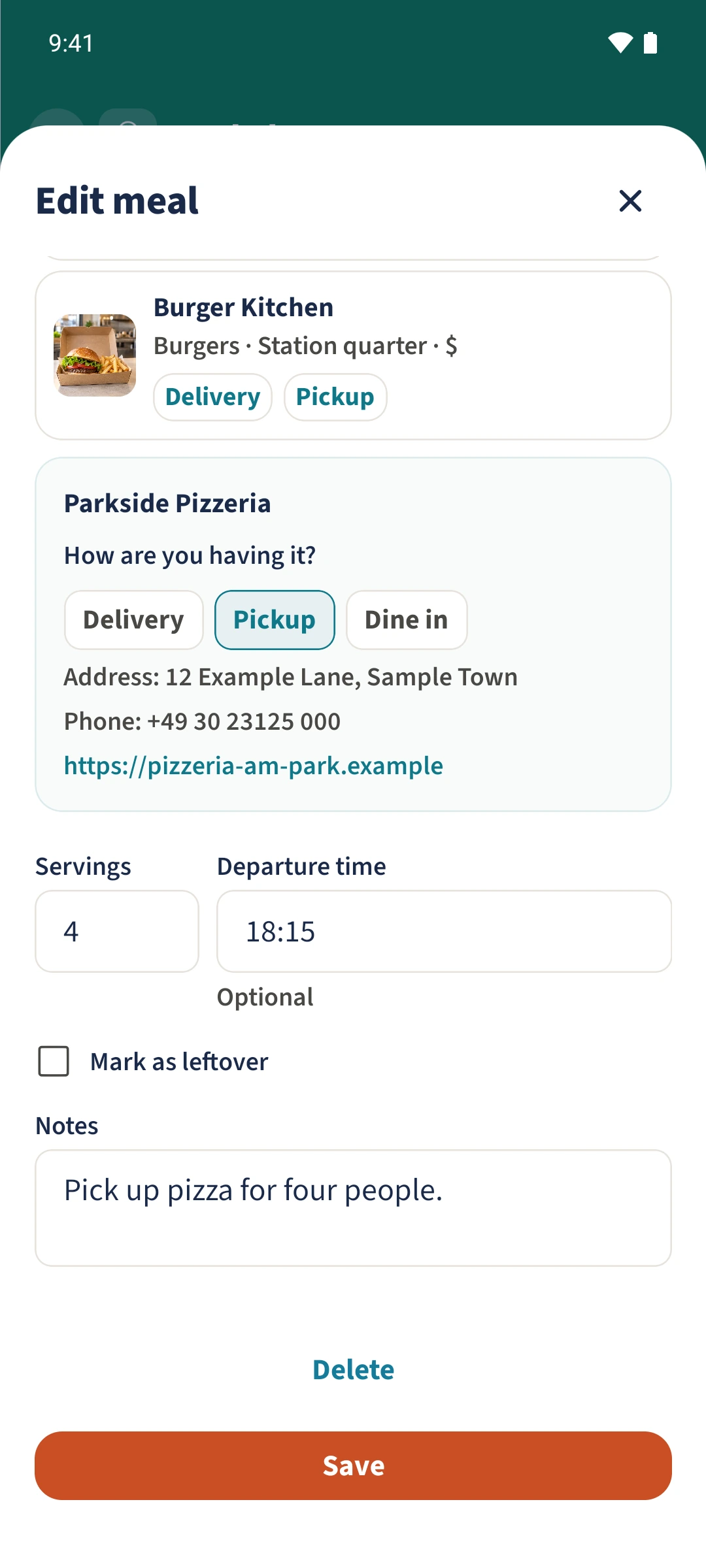
Open Meal Planner and tap Add on the chosen day. Select Restaurant, the meal slot and a saved place. Choose the service option, enter servings and Departure time, and add a note if needed. Save and check the meal in the plan.
How the steps fit together
- 1
Choose the day and source
Open Meal Planner, select the week and tap Add on the day you want. Choose Restaurant and a meal slot such as Dinner.
- 2
Select a saved restaurant
Choose a place from the list. Search restaurants in the meal form searches by name. Manage restaurants opens the family collection if you need to add the place first.
- 3
Set the service and time
Scroll below the restaurant selection and choose Pickup, for example. Enter the servings and Departure time. The example uses four servings and 18:15. Add a note with pickup details if helpful.
- 4
Save and check the meal
Tap Add meal. The weekly plan shows Parkside Pizzeria with 18:15 and Pickup on the chosen Sunday. Tap the saved entry to reopen it; confirm later edits with Save.