
Set and start a timer for game turns
An agreed turn duration gives everyone a visible way to keep the game moving.
Before you start
Some turns take a long time when the group has no visible time limit.
Set the duration
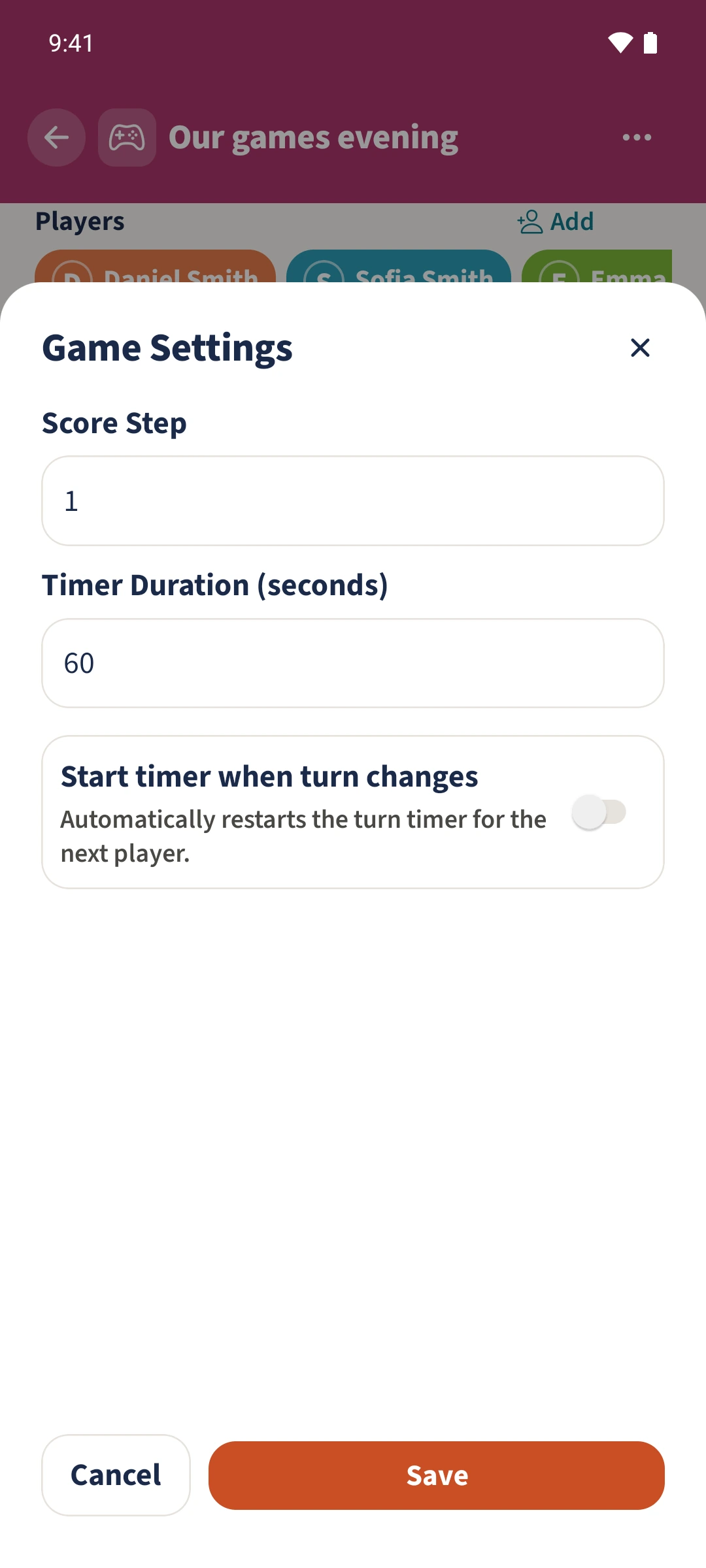
Start a Timer or Combo (Standard) session. Open Actions, then Game Settings. Enter 60 under Timer Duration (seconds), leave Start timer when turn changes off and save.
Check the ready timer
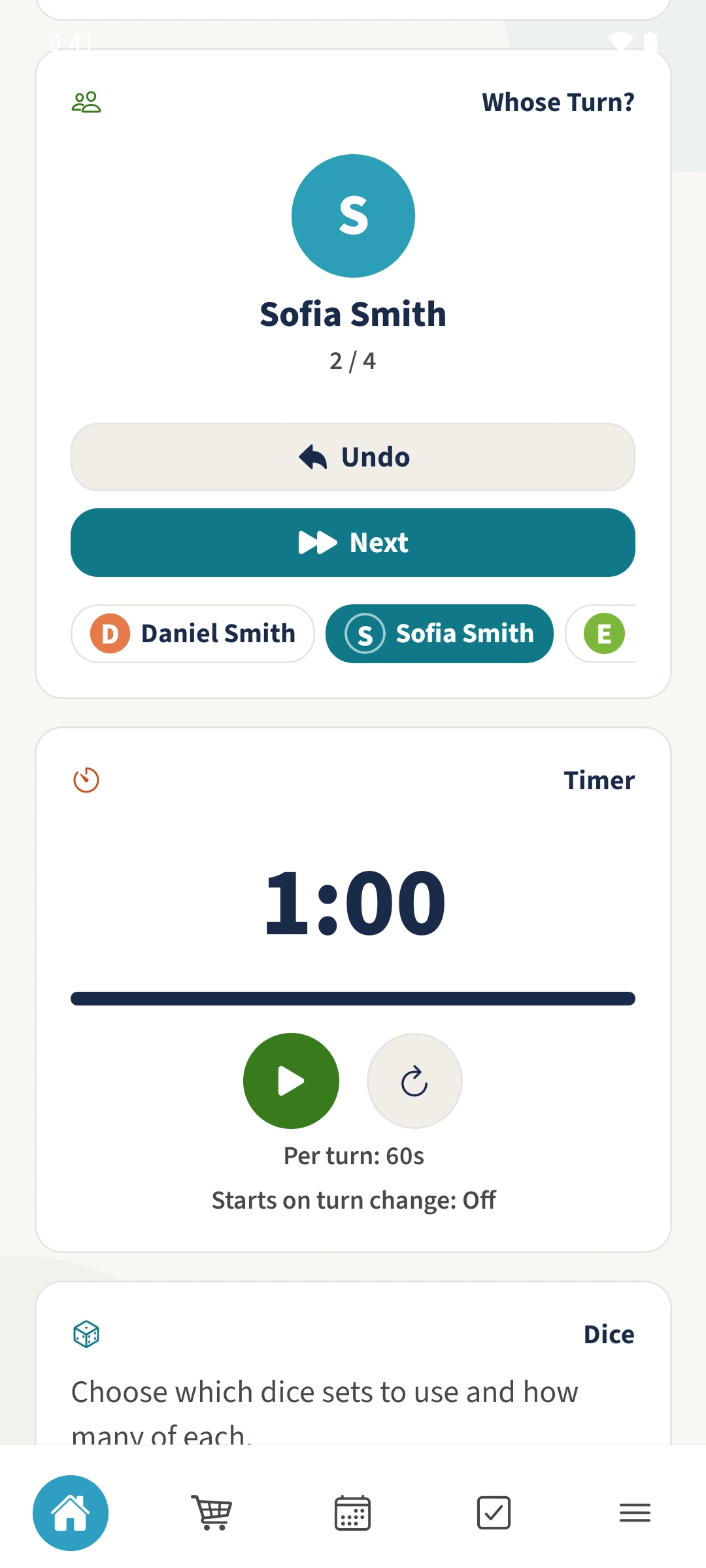
Add players if you also want turn order. Scroll to Timer: it shows 1:00 and Per turn: 60s. Sofia is taking the turn in this example.
Start the countdown
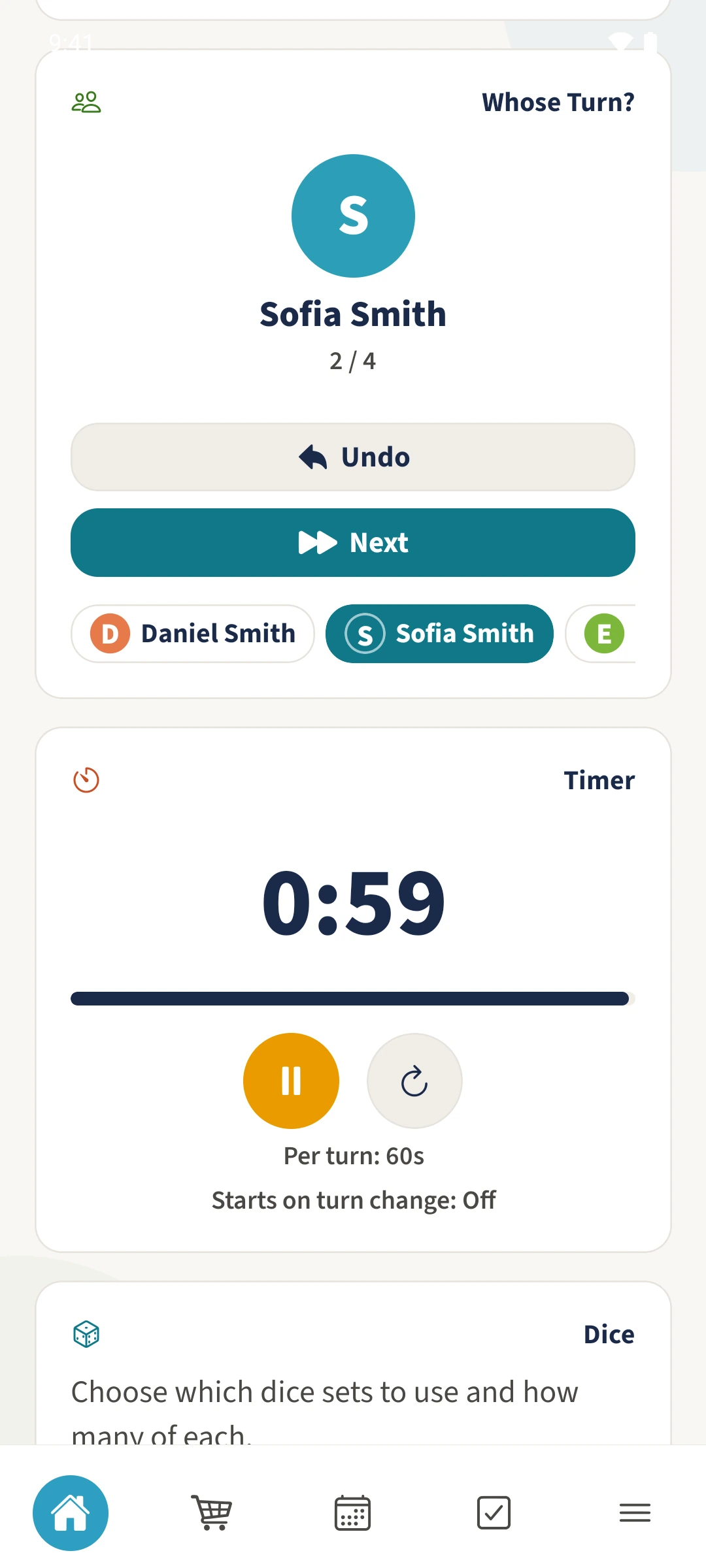
Tap the green start icon on the timer card. The running view shows the remaining seconds counting down.
Reset or move on
The circular arrow restores the full minute. In a Combo session, tap Next to change the player and start their turn time deliberately. Do not use Pause to preserve the remaining seconds.
All done
Start a session with Timer or Combo (Standard). Open Actions and Game Settings, enter Timer Duration (seconds) and save. The start icon begins the countdown and the circular arrow resets it. In the current Android version, pausing also resets the remaining time to the full duration.