
Record several payments and currencies on one bill
Daniel pays part by card and Sofia pays another amount in cash. Keep both payments with the same bill.
Before you start
Payments are written down separately. When one uses another currency, it becomes unclear how much of the bill they cover.
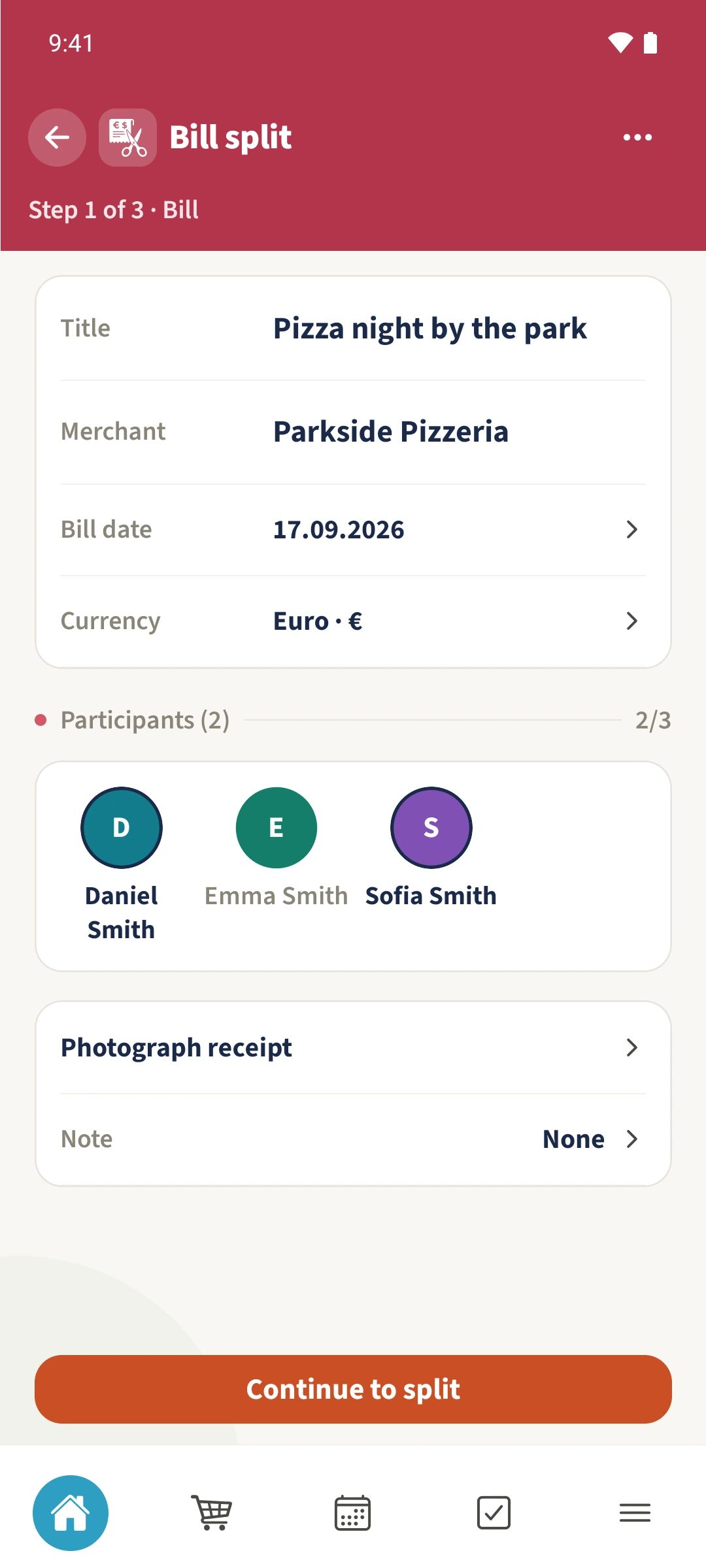
Check the bill currency
Open Bill and check the currency used for the total. The example bill uses EUR. Move to Payments through the split flow or More options.
Choose amount, payer and currency
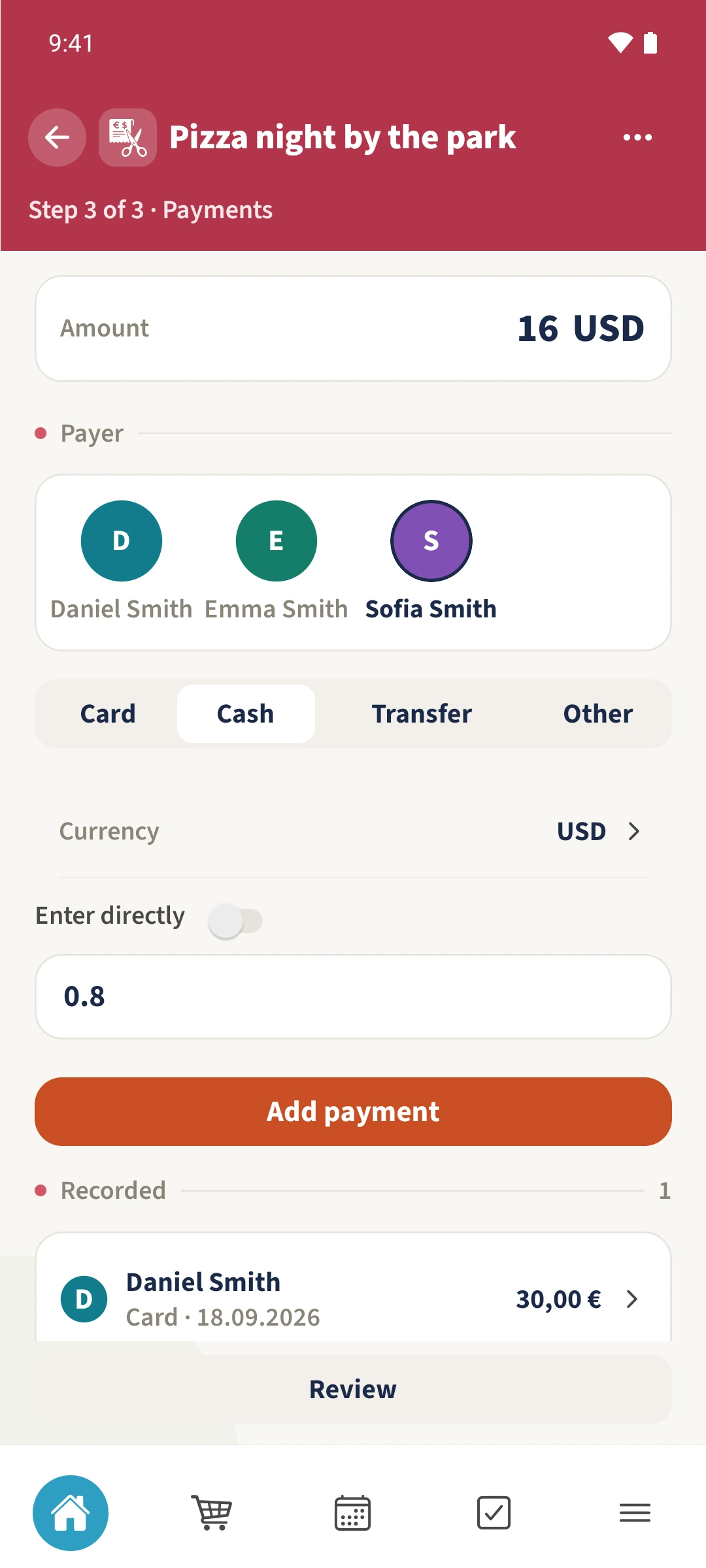
Enter the amount actually paid, select the payer and method. For another currency, open More options → Currency, enter USD for example, and confirm Done.
Enter the conversion and save
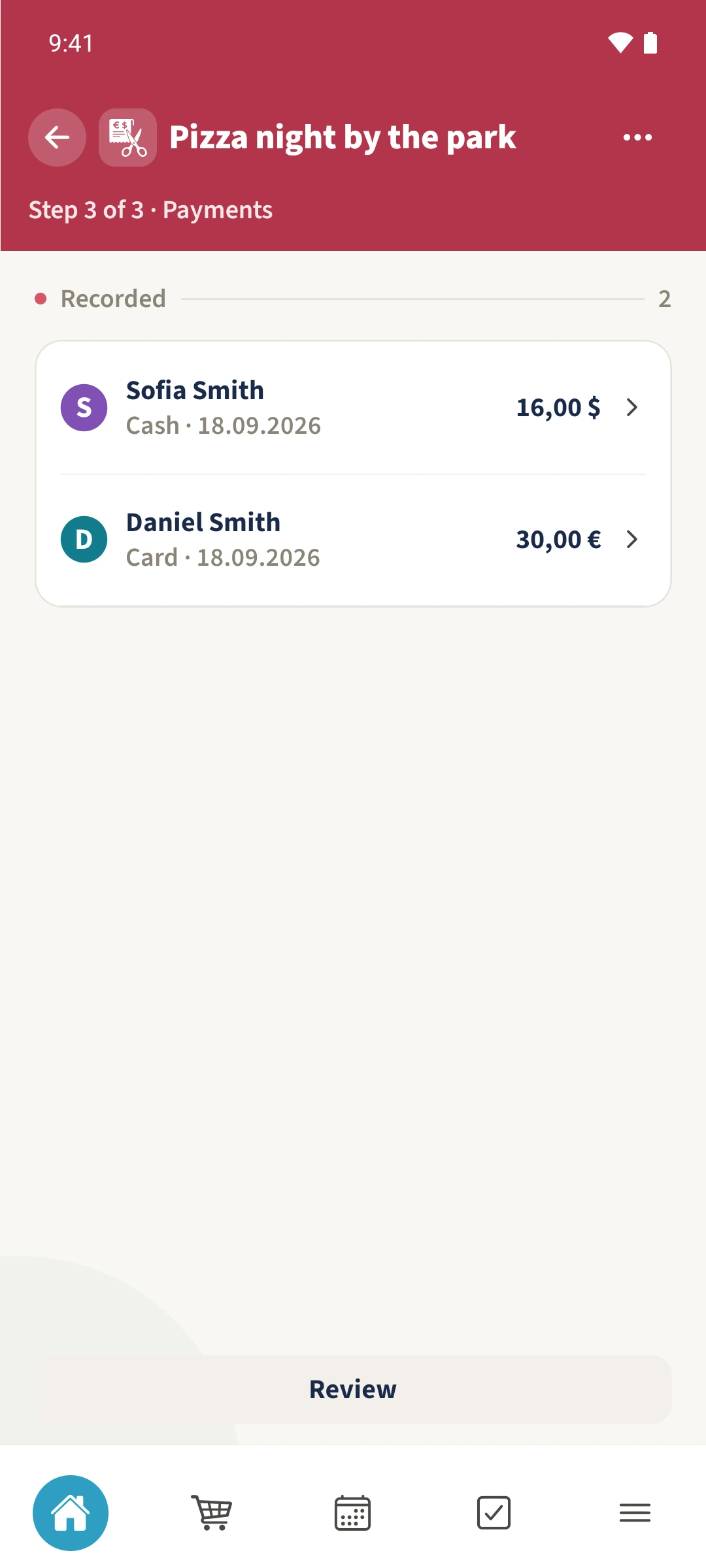
For a different currency, enter a suitable positive exchange rate or enable Enter directly and enter the equivalent in the bill’s currency. Tap Add payment. Repeat for the next payment and check the entries under Recorded.
Check the total paid
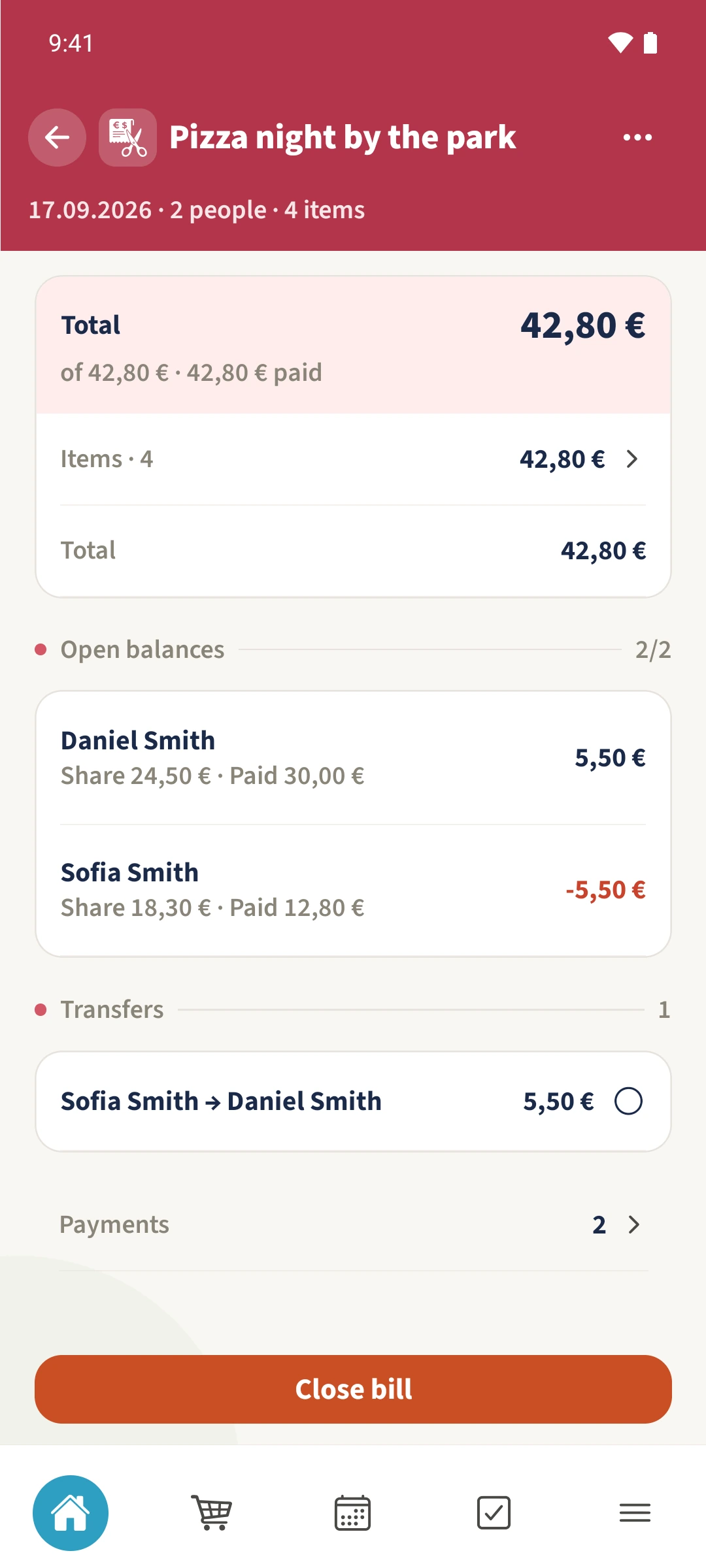
Open Review. Daniel’s €30 plus Sofia’s USD 16 at the demonstration rate of 0.8 total €42.80. The bill is paid, although a repayment between the two people can still remain outstanding.
All done
Set the bill currency first. In Payments, enter the amount, payer and method. To use another payment currency, open More options → Currency. Enter an exchange rate or use Enter directly for the equivalent in the bill’s currency, then save each payment with Add payment.