Create a cleaning plan by room and area
A room and a specific job turn “clean the house” into smaller tasks.
Your family plans in one place
A general cleaning list leaves it unclear what needs doing in each room.
 How Best4Family helps
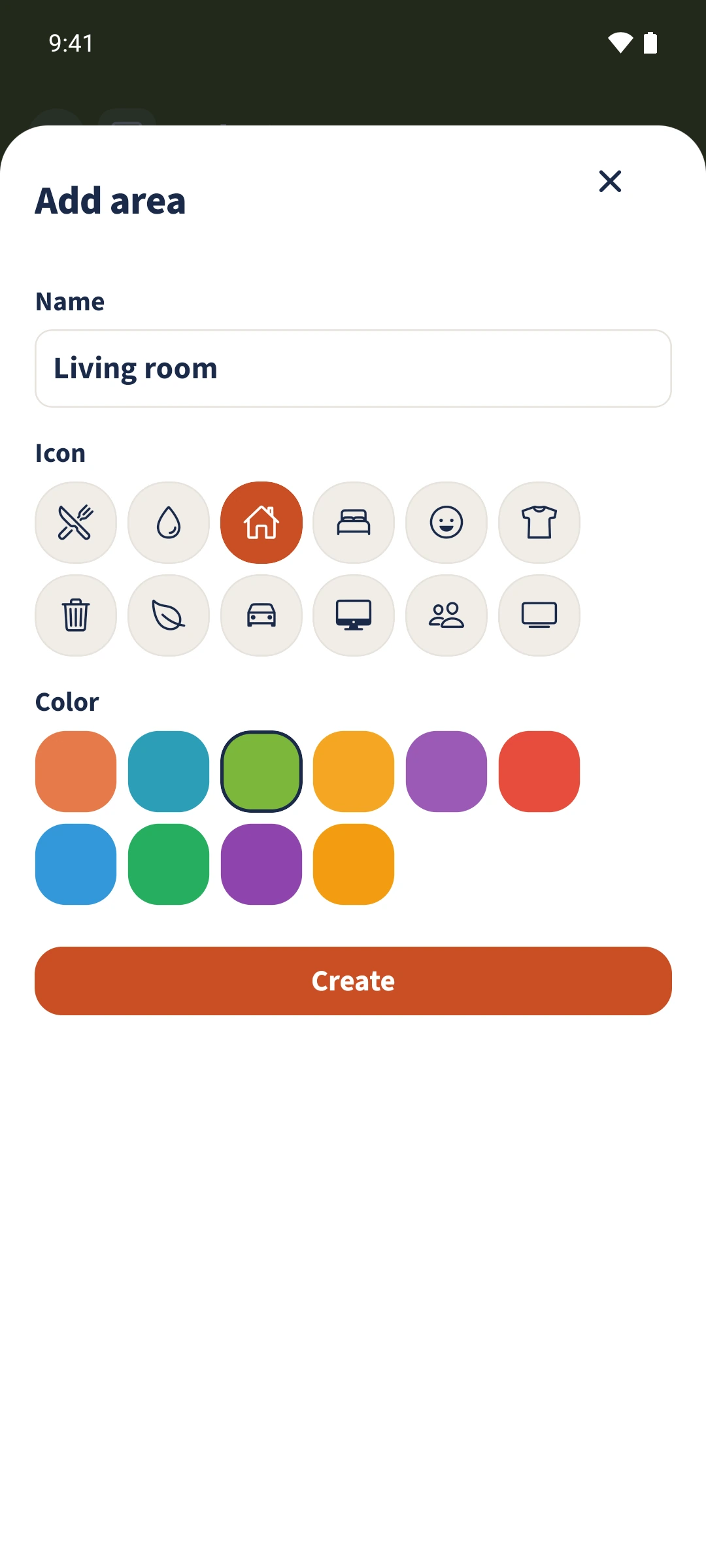
Open Cleaning Plan and choose Tasks & Areas from Actions. Enable the plan in Settings. Under Areas, create a room with a name, icon and colour. Under Tasks, add a template with its area, job, frequency, assigned person and optional checklist. Save it, then generate tasks due today.
Get organised in a few steps
- 01
Enable the cleaning plan
As a family administrator, open the setup, enable Enable Cleaning Plan and save the settings.
- 02
Add an area
Choose Areas and Add area. Enter Living room, choose the house icon and a colour, then save.
- 03
Add a specific task
Open Tasks and add Wipe the windowsills. Assign the template to Living room and add a short description.
- 04
Set the person and steps
Choose the frequency, select Fixed assignment and Daniel, and add the steps for moving decorations and wiping the windowsills. After creating it, the template appears under Living room.