
Organise family notes with tags and groups
A group identifies the area of family life; several tags describe what the note is about.
Before you start
School information, craft ideas and weekend plans become hard to find in one growing collection.
Manage groups and tags
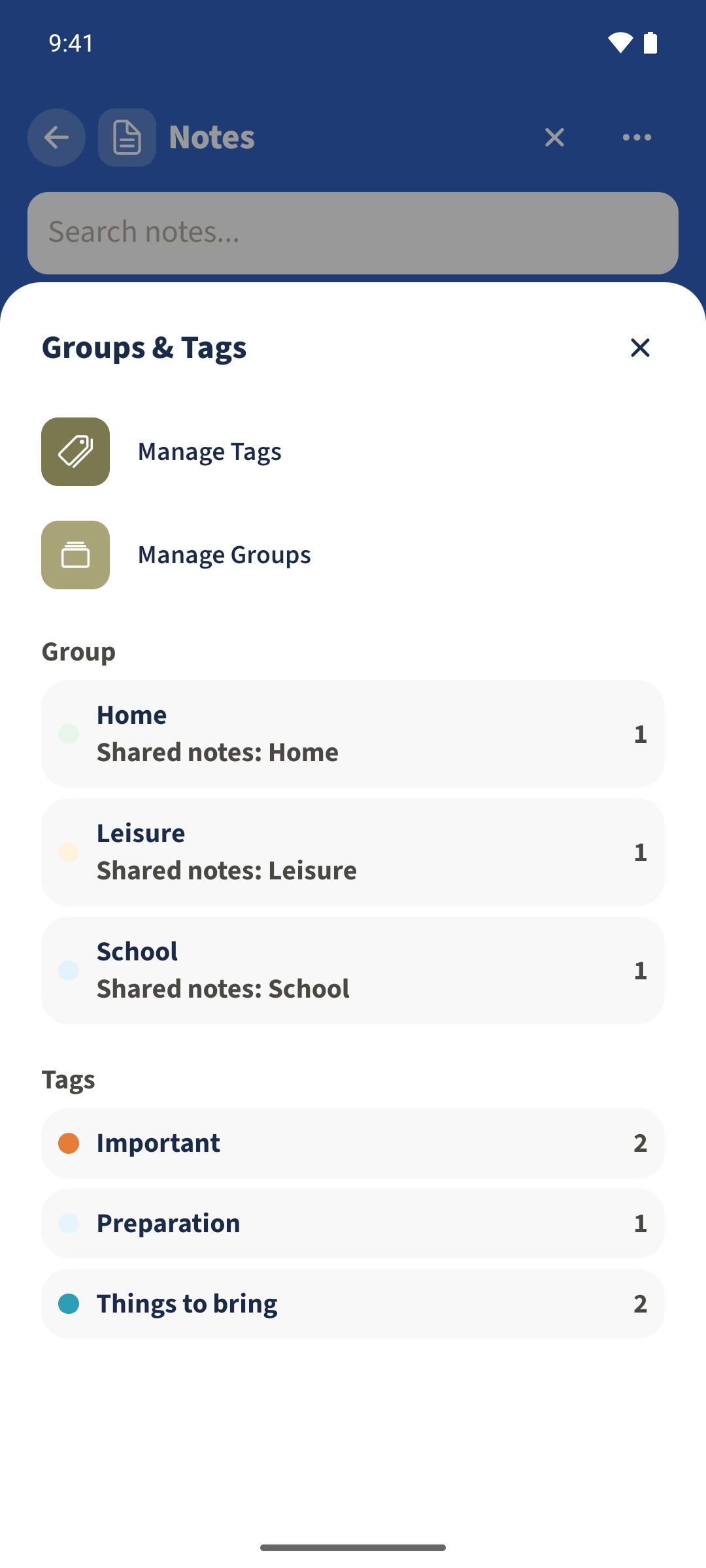
Open Actions, then Groups & Tags and choose Manage Groups or Manage Tags. Enter a name, choose a colour and tap Create. The example groups are School, Home and Leisure.
Assign them to the note
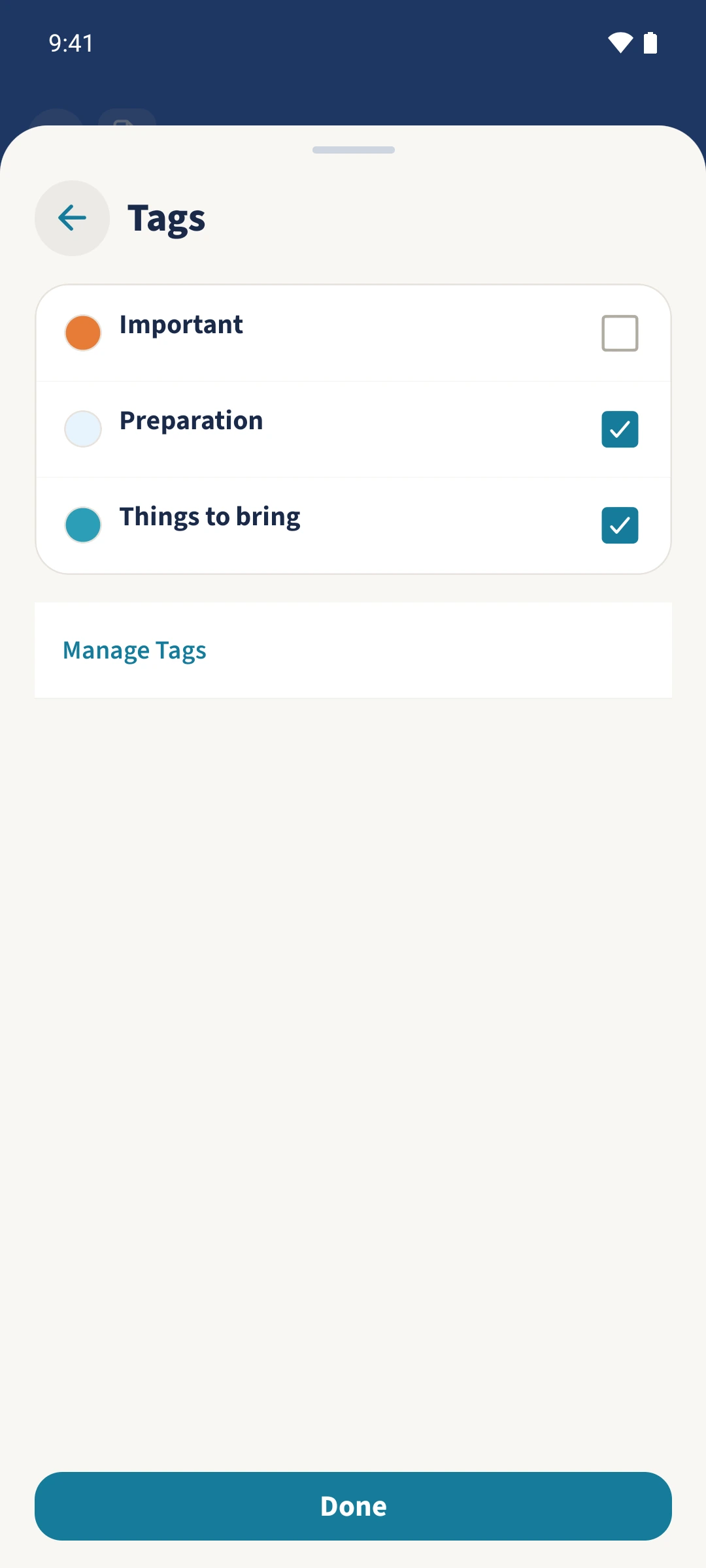
Open the note for editing. Expand Tags and select the relevant entries. Open Group, choose a group and save the note.
Combine filters
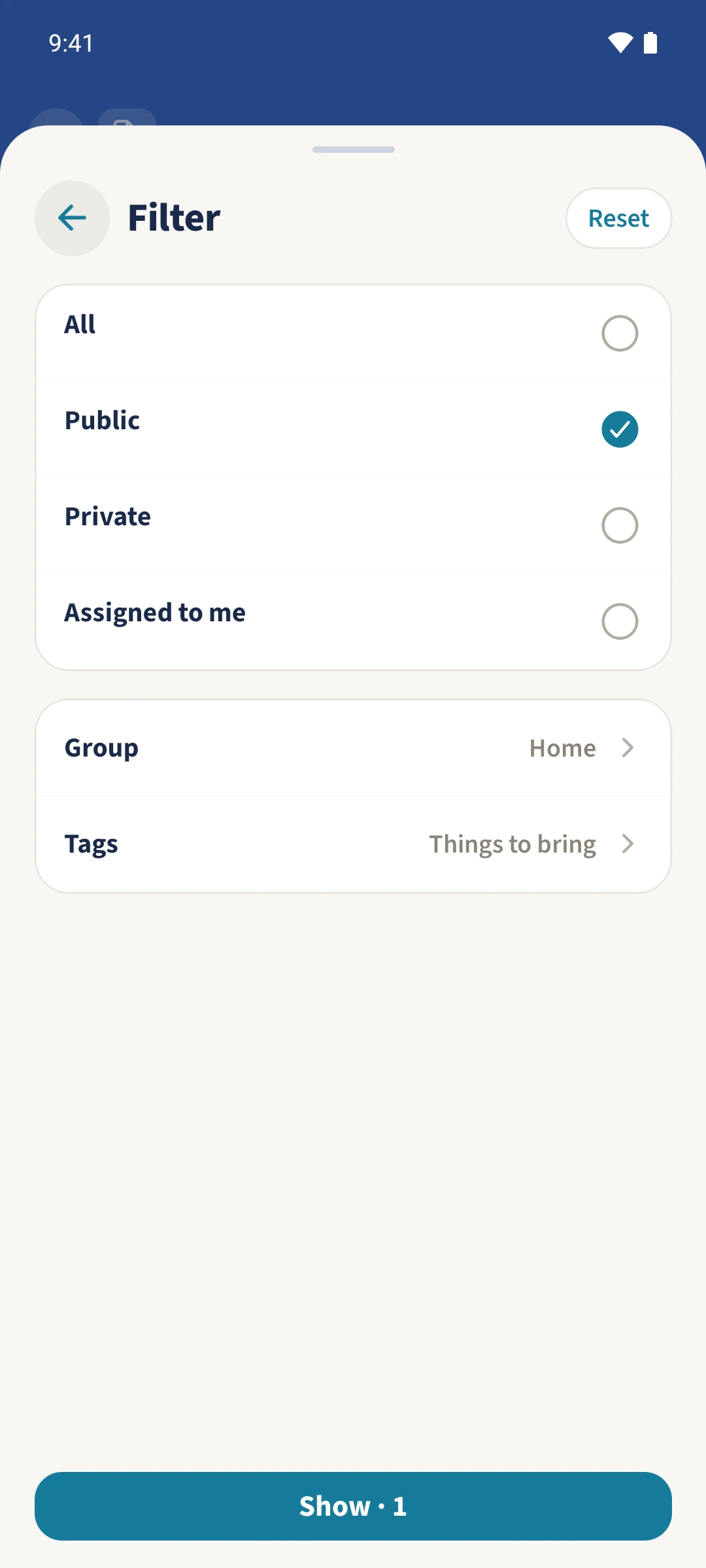
In the overview, open Filter. Select the group and one entry under Tags. Tap Show to apply them; its count tells you how many notes match.
Check the results
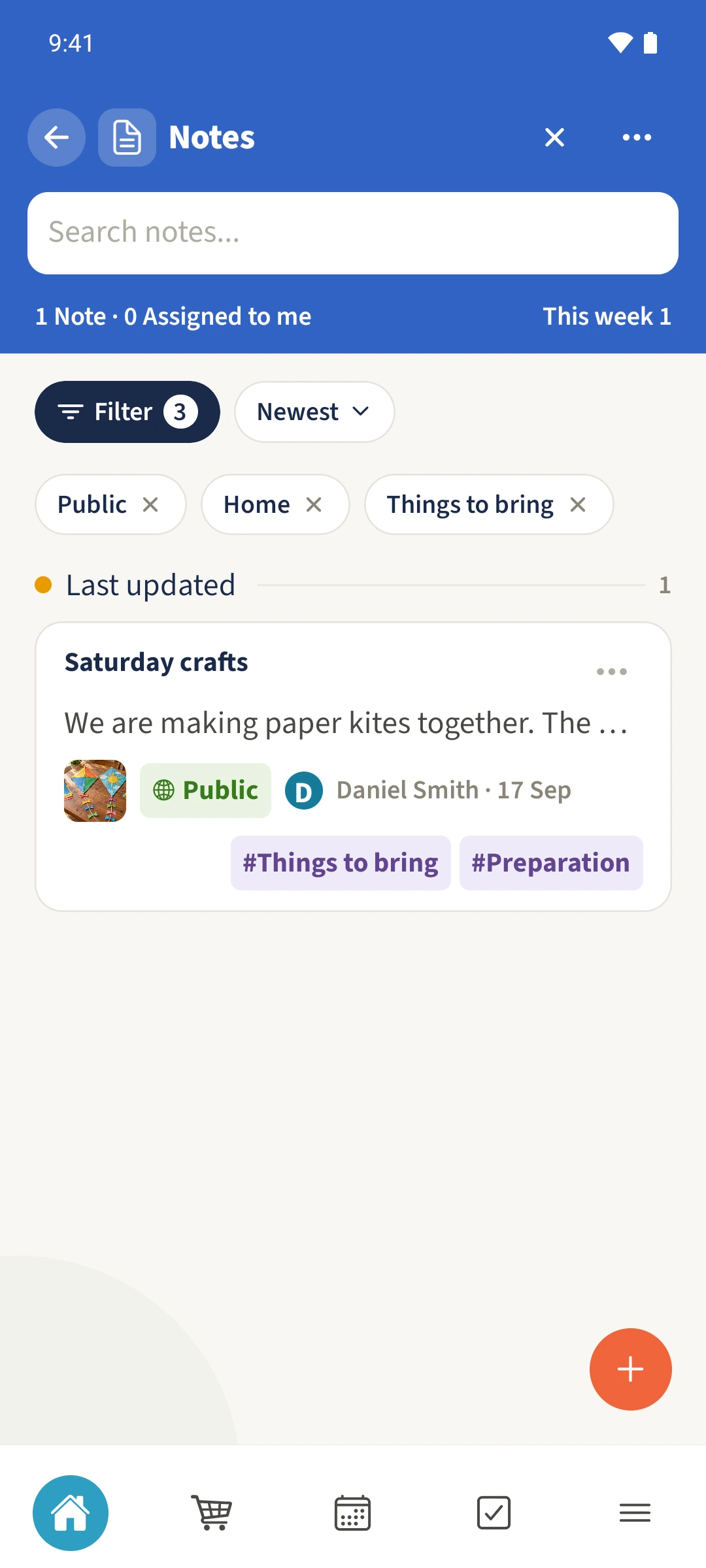
Read the filtered cards. Active filters appear above the list and can be removed there. Reset in the filter dialog clears the selection.
All done
In Notes, open Actions and Groups & Tags to manage the labels. Assign them in a note’s edit form and save. In Filter, choose a group and a tag together, then use Show to display matching notes.